The Ultimate Guide to AI Code Editor: Transform Your Software Development Workflow

Open three product pages and the pitch can sound much the same. One calls itself an AI code editor, another an AI IDE, and a third an AI coding assistant. Yet one may replace your editor, another may add AI to the IDE you already use, and a third may let an agent plan and edit across files.
The differences matter after the demo. A new editor can mean migration work; an agent can leave you with changes to review; and a desktop app may still send project context to a cloud model. Usage-based charges can also make costs harder to predict.
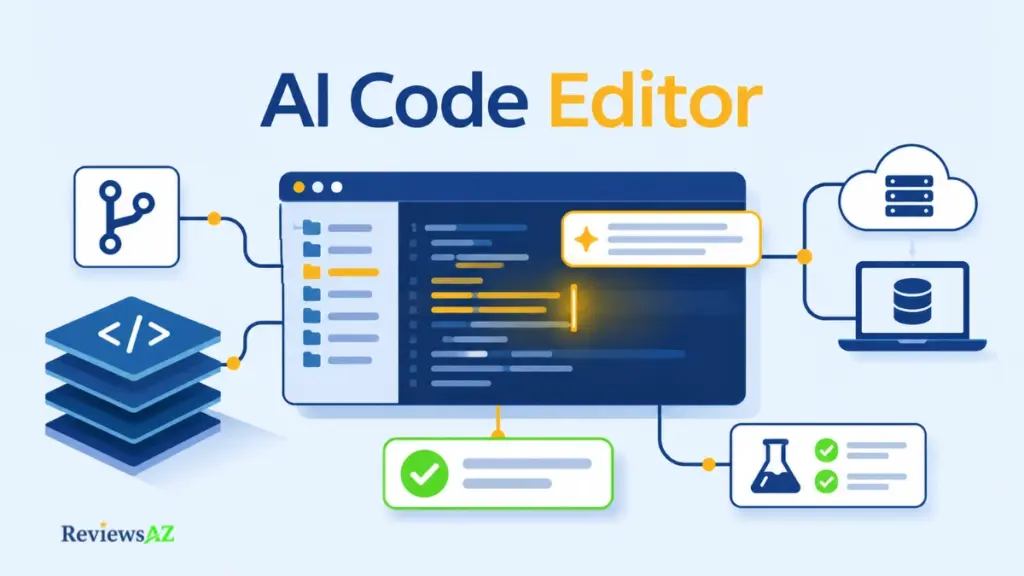
An AI code editor is a coding workspace that uses AI models to help you write, understand and change code, from line-level suggestions to multi-file edits. Its capabilities and level of autonomy vary by product.
This guide is for developers and teams comparing these tools. It is part of our wider AI code editors and IDEs coverage, explaining where the editor and model run, where project context is processed, and how to compare options by workflow, data requirements and cost rather than popularity.
What Is an AI Code Editor?
An AI code editor is a code editor or editor-style development environment augmented with AI features such as code completion, code generation and chat, usually driven by large language models (LLMs). Scope varies widely by product: one may only finish the line you are typing, while another plans a task, edits several files and runs checks.
That range is the first thing to understand, because it decides what you are actually choosing. A conventional editor waits for you to type. An AI-powered code editor can anticipate the next line, draft a function from a description or, in some products, propose changes across several files. You get faster orientation and less typing. You still own the judgment about whether the result is correct.
How AI Code Editors Work
Follow a single request through the tool. You describe a task or select some code, and the editor assembles whatever context that feature can use. Usually that means the active file and your selection. Depending on the product, it can also include files you attach, project instructions, workspace search results or a codebase index built to find related files, often called repository context. Your request and that context go to a model, which may be hosted by a provider or run locally. What comes back is a completion, an explanation or a proposed edit, and you accept, adjust or reject it.
Context Has Limits: Do not assume the whole repository is in view. Some features see only the active file or your selection, while others search or index parts of the workspace. An index helps locate relevant code, but it does not mean every file travels with every request. What reaches a model provider differs by product and settings, so read the documentation before relying on repository-wide answers.
Editor integrations and tools can extend that loop. Depending on the product, the model may be allowed to search files, call connected tools, run a command or execute tests, then use the output to decide its next step. Those are added capabilities, not a baseline. Where the model runs and which parts of your project reach it is a separate question, taken up under cloud-based and local editors.
Common Misconceptions
Two assumptions are worth dropping early. The first is that an AI code editor works on its own. Some features only suggest or explain, and even those that carry out several steps hand back changes for you to inspect. The second is that fluent output is correct output. Code can read cleanly, compile and still miss the requirement or an edge case. Treat suggestions as drafts from a fast colleague who has never seen your production data, and run your tests before accepting them. Which brings up the next problem: telling one kind of product from another.
AI Code Editor vs AI IDE vs AI Coding Assistant: What’s the Difference?
Open a JetBrains IDE and you can end up with two AI assistants in the same window: JetBrains’ own and the GitHub Copilot plugin. Neither one is the IDE. Both are assistants. Meanwhile, another product might be the editor, the IDE and the assistant all at once. That is why the three labels in this heading describe overlapping roles, not boxes you have to pick from.
There is no formal standard for these terms, so here are working definitions. An AI code editor is the workspace where you read and change code, with AI built into the editing experience. An AI IDE wraps that workspace in a fuller toolchain, such as debugging, build and test tooling, with AI either built in or added. An AI coding assistant is a capability rather than a place: completion, chat or an agent layer that can live inside an editor, an IDE or both. Classify a tool by what it does in your workflow, because a product marketed as an editor may contain an agent, and an assistant may ship inside an IDE.
Five questions show where the roles separate and where they blur:
- Function: The editor is where code gets written and changed. The IDE adds the surrounding toolchain. The assistant supplies suggestions, chat, edits or agent work to whichever host it runs in.
- Work environment: An editor or IDE is usually the app you work in, and an AI IDE may be a standalone product or a traditional IDE with AI added. An assistant more often arrives as a plugin inside a host editor or IDE, although some also run in a terminal or on the web.
- Project understanding: An editor may start from your open files, and some products index more of the project. An IDE can combine its own project model with whatever the AI retrieves. An assistant sees what its host exposes plus any retrieval of its own, so the same assistant can behave differently in different hosts.
- Task execution: Some editors only suggest and edit, while others can run commands. An IDE may route agent tasks through its own tooling. Assistants cover the widest range, from a single completion to a multi-step agent.
- Overlap: An editor is often sold as an AI IDE. An AI IDE can be AI-native, with AI shaping the core workflow, or AI-enabled, with AI added to an existing IDE. One assistant can appear in several products. A single product can fill more than one role at once, so read these as roles, not as a product directory.
Vendor documentation shows the overlap in practice. GitHub lists Copilot as available in Visual Studio Code, Visual Studio, JetBrains IDEs, Eclipse and Xcode, which makes it a cross-IDE assistant, though features vary by IDE. JetBrains describes its AI Assistant as a set of AI features and coding agents integrated into its own IDEs, which makes it an IDE-integrated assistant. GitHub’s documentation also lists the Copilot plugin as a separate entry point inside JetBrains IDEs. That is how one IDE ends up with two assistants.
Kiro shows a different pattern. Its site presents spec-driven development, turning prompts into requirements, designs and tasks. That puts AI at the center of the workflow instead of adding it to an existing one, so we would class Kiro among the AI-native IDEs. That label is our reading, not the vendor’s.
The distinction matters most at the point of commitment. Choosing an editor or IDE means choosing an environment, with its shortcuts, extensions and habits. Choosing an assistant usually means keeping that environment and adding a capability to it, and nothing stops you from doing both. If keeping your current setup is the priority, our guide to AI coding assistants looks at that layer on its own. Either way, the label tells you less than the features do, and the next section covers how to judge those.
Key Features to Look for in an AI-Powered Code Editor
Two tools can both advertise multi-file editing and behave nothing alike. One edits only the files you name. Another searches the workspace first and proposes changes to files you never mentioned. The checkbox looks identical, and the review burden does not.
The useful question is not whether an AI-powered code editor has a feature, but how you would know it works on your code. The table pairs each common feature with what to check before you trust it. Some of those checks are tests you can run, others are things to observe, and none of them is a score.
| Feature | What It Does | What to Evaluate |
|---|---|---|
| Code Completion | Suggests the next line, block or edit | Acceptance rate in your language, lag, a per-file off switch |
| Code Generation | Drafts functions, tests or boilerplate from a prompt | Passes your tests, reuses your helpers, rewrite needed |
| Context Awareness | Draws on open files, selections or an index | Correct answers about unopened files, include and exclude controls |
| Multi-File Editing | Applies one request across several files | Reviewable diffs, consistent imports and types, partial rejection |
| Debugging | Explains errors and proposes fixes | Works from your real stack trace, fixes the cause instead of silencing the error |
| Agentic Capabilities | Plans and runs multi-step tasks | Approval prompts, stop or undo, secret handling |
A Demo Is Not Proof: A feature that looks flawless in a demo has not yet been tested on your repository. Try it on an existing module with cross-file imports and real tests, not a fresh sample app, and note how much you had to fix.
Vendor documentation shows how much the range varies. GitHub describes Copilot making changes across multiple files from a single prompt, and JetBrains documents its AI Assistant drawing on project context such as the open file, selected code and recent changes. Both describe scope. Neither tells you how reliable the results are on your code.
Not every feature deserves the same weight. A data team may care most about notebook context and debugging, a web team about multi-file edits and tests, a platform team about agent permissions. A solo developer on a small codebase may get most of the value from solid AI code completion and debugging. Context awareness earns extra weight on large repositories, where an editor that sees only open files and one that retrieves from the whole project will answer the same question very differently.
The features also interact. Multi-file editing built on thin context can produce changes that look consistent and still miss files the tool never examined.
Comparing quality fairly would take disclosed tests on identical tasks. None were run for this guide, so it offers no scores and no ranking. Your own tests, on your own code, fill that gap, and the last row of the table is the hardest to test, which is why agents get their own section next.
What Are Agentic Code Editors?
More autonomy is not automatically more useful. An agent that edits many files in a single run is a gain only if you can inspect what it did and undo it. Otherwise you have swapped typing time for a bigger review problem.
Agentic code editors go beyond suggesting lines. They let an AI coding agent plan a task, work through several steps and act in your environment. That plan-and-execute capability is agentic coding, which differs from vibe coding, a natural-language-first style of building that may or may not involve an agent. Agent behavior varies by product, but the loop usually looks like this:
- Plan and inspect context: The agent turns your request into steps, then reads files and searches the project to find what the task touches. It does not necessarily load every file.
- Edit files: It applies changes, sometimes across many files. Whether edits wait for your approval or land directly in the workspace is a setting worth checking before the first run.
- Use tools and run checks: Where permitted, it runs terminal commands or connected tools, then runs tests and reacts to the output. This stage has the most reach, so permissions matter most here.
- Hand back a diff for review: You accept or reject the changes. Passing the checks the agent chose to run does not prove your requirements are met.
Before You Click Allow: An agent asking for broad terminal or repository access is not evidence that it needs it. Broad permissions turn a wrong guess into a wrong action, so grant the narrowest access that finishes the task and keep API keys and other secrets out of reach.
Where the approval checkpoint sits is product-specific, and the details are shifting, so check current documentation. Cursor’s help center says that from version 3.6 its default run mode is Auto-review: allowlisted commands run, others run in a sandbox where possible, and a classifier screens the rest. Reading files and searching code need no approval.
Cursor’s own security pages call these best-effort guardrails, not a hard security boundary, and warn that with auto-reload enabled, agent changes might execute before you can review them. A .cursorignore file hides files from the agent’s built-in tools, but Cursor’s hardening guide says terminal and Model Context Protocol (MCP) tools cannot honor it. Treat it as one layer, not isolation.
Other products choose differently. Kiro enables Autopilot by default, which runs multiple steps without per-step approval. GitHub describes Copilot’s agent mode as running commands with your approval. No product’s model can be assumed for another.
The wider risk has a name. OWASP calls it excessive agency: too much functionality, too many permissions or too much autonomy, with human approval for high-impact actions as one safeguard. Whatever the agent does, your tests and your own review are the validation. The agent’s confidence is not.
Cloud-Based vs Local AI Code Editors
An editor installed on your laptop tells you where the interface runs. It does not tell you where your code is processed. The app may be local while your prompts, and parts of your project, travel to a model running in someone else’s data center.
That is why “cloud-based or local?” is too blunt a question. It splits into three, and each can have a different answer:
- Editor Execution: where the editor itself runs. It might be an app on your machine, or a cloud-based AI code editor inside a hosted development environment that you reach through a browser.
- Model Inference: where the model that writes the answer runs. That could be a provider’s cloud, a service the editor vendor operates, or hardware you control, which is what local model inference means. Different features in one product can use different models.
- Project and Context Processing: where your files are stored, read and indexed, and which pieces are sent on to a model or service. A repository can sit on your disk and be indexed locally while snippets still go to a remote model, so each step needs its own check.
A local install therefore proves little about offline use. Ask whether the editor can work with local AI models for coding at all, which features then use them, and whether any feature still calls a remote service.
JetBrains’ documentation shows how this plays out in one product. By default, AI Assistant uses cloud-based models through the JetBrains AI service, sending your request and collected context, such as selected code or the current file, to the model your configuration selects.
It can also connect to Ollama and LM Studio, which serve models you run yourself. A connected local model appears in chat first and reaches other features only after you assign it manually. Code completion keeps using JetBrains’ own models unless you configure a separate completion provider. So a local chat model does not, on its own, make a setup offline. Settings like these change between versions, so check the IDE version you actually run.
Neither end is automatically better. A hosted environment reduces setup and hardware demands but involves a remote provider and its data terms. A local model gives you more control over where inference happens but adds hardware, maintenance and feature-compatibility questions. Most real setups mix the two: a local editor, a cloud model and a repository index that you may or may not control.
AI-Powered Code Editor Use Cases Across Development Workflows
“Supports Python” is one of the least useful lines on an AI editor’s feature page. It might mean the editor opens your notebook and understands pandas, or it might mean it can finish a function and little else. The same gap shows up in web apps, databases and quick prototypes, and each one breaks in a different place.
Python and Data Analysis
Data work lives in notebooks as much as in scripts, so notebook support is the first thing to verify in an AI code editor for Python. Cursor’s data science guide says it opens .ipynb files, that full notebook support requires the Jupyter extension, and that Tab and Agent understand pandas, NumPy and scikit-learn. Ask the same of every editor you shortlist: which notebook formats and Python tools does its documentation actually name?
Notebooks also carry hidden state. A cell may depend on a variable defined several cells earlier, and an AI edit will not always reveal that. Whatever it proposes, restart the kernel and run the cells top to bottom before trusting the result.
Web Development
Web work is rarely one file. A new feature usually touches a component, an API route and the test that covers them, and the edit is only useful if all three still agree. That is the lens to use when you evaluate an AI IDE for web development: the diff matters more than the demo.
GitHub lists JavaScript and TypeScript among the languages where Copilot works especially well, and says it can help with APIs and frameworks. That is a useful starting point, but it is not a promise about your React version, build tool or test setup. Confirm the frameworks you use in the product’s own documentation, then let your test suite decide.
SQL and Data Engineering
SQL in an editor mostly means files and notebooks: migrations, transformation queries, pipeline documentation and data-quality tests, all of it text you can review. Cursor says its AI features understand SQL magic commands in notebooks, and GitHub says Copilot can help generate database queries. Cursor also documents MCP servers, which can let an agent query a database directly once the connection is configured.
Writing a query and running it against live data are very different levels of access, so treat the connection as a permissions decision. Start with a read-only account, and a non-production database where possible. If most of your day goes to exploring schemas and tuning queries in a database client, a dedicated tool may fit better, and that is the territory of AI SQL tools.
Prototyping With Natural Language
Sometimes the goal is not clean code but an answer to “what do I actually want to build?” Describing an app in everyday language and refining it through follow-up prompts, often without reading every line, is the core of vibe coding. It suits demos, throwaway tools and early experiments. It is not the same as agentic coding: you can vibe code in a plain chat box, and an agent can follow a strict spec.
The risk starts when the demo begins to look finished. Code you haven’t read is code you can’t vouch for, so a prototype stays a prototype until someone has reviewed and tested it.
The stack trap: Language support does not guarantee framework, notebook or database workflow support. A tool that handles Python may not open your notebooks, and one that writes SQL may not connect to your database. Test the workflow, not the label.
The four cases lead to the same test. Skip the list of supported languages and ask whether the editor can reach the files, tools and context your workflow depends on, and whether it returns changes you can check with a notebook rerun, a test suite or a read-only query. Most developers switch between these modes within a single week, which is why the next section matches tools to workflows instead of ranking them.
AI Code Editors and Coding Tools: Best-Fit Options by Workflow
Read the feature pages of these eight tools and the vocabulary blurs together: agents, context, autonomy. The real differences sit elsewhere, in where the work happens and who keeps the controls. One tool asks you to move into its own editor, another plugs into the one you already use, and a third runs the whole project in a browser tab.
The eight below are grouped by the workflow each one fits, not ranked. Descriptions rest on vendor documentation available when this article was published. Nothing here was independently tested, and none of the products won a hands-on benchmark.
- Cursor: This is an AI-native editor built around an agent that reads files, edits them and runs terminal commands. It suits developers who want agent-driven editing to be the main way they work and are happy to switch editors to get it. Because the agent can act on your workspace, the run modes and ignore rules from the agent section need a deliberate setup rather than the defaults. Moving to Cursor also means checking that your extensions and team settings come along.
- Devin Desktop (formerly Windsurf): The vendor presents Devin Desktop as the new name for Windsurf, an IDE built as a command center for managing agents, and its FAQ introduces a local agent called Devin Local. That points to developers who want to oversee several agents from one place without leaving an IDE. Names and defaults have changed, so older Windsurf tutorials may not match what you see on screen, and current plan terms are worth checking before you commit.
- Kiro IDE: Spec-driven development is the whole idea here. Its site says Kiro IDE turns a prompt into requirements, a design and a sequence of tasks before it implements anything, and independent tasks can run in parallel. Teams that want planning documents to exist before code does will find that appealing. Autopilot is on by default, so anyone who wants approval checkpoints should switch to Supervised mode. The spec step adds a planning stage to every task, which can feel heavy for a quick fix.
- Augment Code: The pitch is codebase awareness. After you sign in and index your workspace, Augment Code can draw on the whole repository and not only the open file, according to its documentation. It reaches you through IDE extensions, a terminal CLI and a cloud agent platform called Cosmos, which makes it a sensible choice for developers who would rather keep their current editor. Plan matters: code completions were deprecated on March 31, 2026 for non-Enterprise plans, while Enterprise plans continue to be supported, so check which surfaces your plan includes.
- JetBrains AI Assistant: This one lives inside JetBrains IDEs, with chat, editor actions and coding agents that draw on project context such as the open file and recent changes. It can run on a JetBrains subscription, your own API keys or external agents. For anyone already working in IntelliJ-family IDEs, JetBrains AI Assistant is the obvious place to start. The obvious limit is that it does nothing for teammates who use other editors.
- GitHub Copilot: This is a cross-IDE assistant, and GitHub lists Visual Studio Code, Visual Studio, JetBrains IDEs, Eclipse and Xcode as supported environments, covering completions, chat and, in IDEs that support it, agent mode. That reach makes GitHub Copilot the easy answer for teams where people use different editors, since the same assistant follows them from one to the next. Features still vary by IDE, so check the matrix for yours before assuming parity.
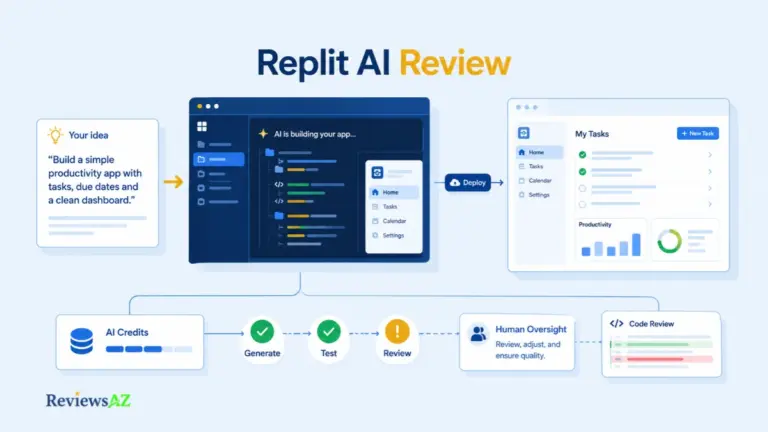
- Replit: Everything happens in the cloud, in a hosted development environment with an agent that builds apps from plain-language descriptions. Per its documentation, the agent writes code, sets up infrastructure and tests the result. Plan mode lets you approve a task list before anything is built, and checkpoints let you roll back. Prototypes and idea-to-deployment web apps are where Replit AI fits best. Costs and usage limits depend on your plan and the agent mode, so read the current terms before starting a long build.
- Blackbox AI: Think of it as a family of surfaces more than a single product. Its own site lists a browser-based remote agent, an AI-native IDE, a VS Code extension, a CLI, a mobile app and a prompt-to-app builder, plus an API for routing requests across models. That breadth suits developers who want agents across several environments, including multi-agent runs. Features and data terms differ by surface and plan, so confirm which Blackbox AI surface a given claim refers to.
Shortlisting rarely needs all eight. Start with the one decision that removes the most options: whether you are willing to change editors at all. If the answer is no, the choice often narrows to an agent that works inside your current setup, and Augment Code vs Kiro shows how that compares with going spec-first in a new IDE.
Run the Same Task Twice: Give your two finalists the same small task in a repository you know well, and judge each by how much cleanup the result needs. An identical, small task is a fairer test than any feature list.
Teams spread across several editors have one more question to settle, which is whether a single assistant should follow everyone or each IDE should keep its own, and GitHub Copilot vs JetBrains AI Assistant works through it. Anyone starting from a blank page instead of an existing repository can read Replit vs Blackbox AI to see how a hosted environment compares with a broader set of surfaces.
Free AI Code Editors Worth Starting With
The word “free” sits on nearly every AI editor’s pricing page, and it does not always mean the same thing. Sometimes it describes the editor itself, sometimes a plan with a small allowance, and sometimes a trial that ends. Which one you are looking at decides whether the tool still works for you after the first week of real use.
Three shapes cover most free offers, and they overlap: a free plan can also be quota-limited, for example. The examples below show how each shape looks in practice, not what each product offers in full.
- Fully free editor software: The editor costs nothing to install and use, but that says little about the AI. Zed shows the split clearly. It works as an editor without any AI subscription, and its AI features come through your own API keys or its paid plan. The editor is one decision and the model is another, so a bring-your-own-key setup can cost nothing upfront and still produce a bill from the model provider, depending on how much you use it.
- Free plan or trial: You get real access to AI features, shaped by the vendor. A free plan can stay available indefinitely with a ceiling on requests, models or features, while a trial gives access for a limited time and then ends. The two feel identical in week one and very different in week five. Cursor’s free plan is an example of the plan style, with limited agent requests and chat usage that suit smaller tasks better than heavy daily agent work.
- Quota- or credit-limited service: Usage is metered, so the allowance sets how far you get, not the calendar. Kiro’s free tier runs on a monthly credit allowance with access to a subset of models and rate limits, and Replit’s Starter plan gives limited daily Agent credits. Credits and requests are not interchangeable, and one multi-file agent task can use far more than a quick question. The same allowance can feel generous for a prototype and thin for sustained work, and when it runs out you wait for renewal or pay.
Is a free editor free to run? Not necessarily. An editor can cost nothing while the model behind it is metered separately, and a hosted environment may apply its own limits to usage, publishing or storage. What a free tier includes differs from product to product. Before you build a routine around a free option, work out which part of your day stops when the allowance ends.
Allowances, models and renewal rules change, so treat each vendor’s own pricing page as the final word on the day you decide. The products named here only illustrate the three shapes, and a side-by-side look at what each current free option includes is in the guide to the best free AI code editors.
Open Source AI Code Editors to Explore
You can read every line of an open-source editor’s code and still have no idea where your prompts go when you press Tab. Public source shows what the software does on your machine. It says nothing, by itself, about the AI service on the other end.
That gap is why “open source” gets stretched across three separate claims: the editor’s code is open, the model’s weights are open, and the whole setup runs on hardware you control. Each can be true while the others are false, so it helps to take them one at a time.
- Open-source editor code: The source is published under a license that lets you inspect it and, depending on the terms, modify and redistribute it. Zed is one example, with its editor published under GPL-3.0-or-later and some components under Apache 2.0. VSCodium is another, offering MIT-licensed binaries built from VS Code’s open repository with telemetry off by default. Neither fact settles the AI question. Zed’s hosted models carry their own costs, and VSCodium gets its AI features from extensions, some of which on Microsoft’s marketplace won’t run there.
- Open-weight model availability: The weights can be downloaded, under terms that vary and may still restrict use. That describes the model, not the editor: a closed-source editor can call an open-weight model, and an open-source editor can call a proprietary one. Open weights are also not the same as an open-source AI system. The Open Source Initiative’s definition for AI looks beyond the weights to information about the training data and the code used to build and run the system.
- Local or self-hosted deployment: Inference runs on hardware you control, which needs a model you can host and an editor that can reach it. It also takes real setup, including compatible hardware, deployment and ongoing maintenance. Not every feature, agents included, necessarily works that way, and depending on its settings an editor may still contact outside services for extensions or other features.
Open source is not a privacy guarantee: An open-source editor can send your prompts and code context to a paid, proprietary cloud model, and running a model locally does not by itself stop other features from contacting external services. Public source lets you verify the data flow. It does not do the verifying for you. Before trusting a setup with private code, treat the editor’s license, the model provider’s data terms and the settings that control what leaves your machine as three separate questions.
Maintenance deserves the same scrutiny as licensing, because an open repository can sit quiet for a long time. Aide shows why. It is an open-source, AI-native editor built on a VS Code foundation, with chat-assisted edits, inline editing and completion, so using it means relying on its repository to stay active. Check recent releases, open issues and project activity first. If the maintainers have stopped, the code remains available to explore or fork, but fixes and updates do not come with it. Also confirm whether the editor, extension, agent and model are licensed separately, since they can be. Specific projects are compared in the guide to the best open source AI code editors.
How to Choose the Best AI Coding Environment for You
What does this environment need to support, and what must it never touch? Start there, not with a feature count. With an agentic editor the second half matters as much as the first, because the tool can act on whatever it can reach. Popularity is a poor shortcut: the tool everyone mentions says little about your repository, your policy or your review capacity. Whether you are weighing a full AI IDE for developers or an assistant that plugs into the editor you already use, seven criteria turn that question into a repeatable choice.
- Languages and framework compatibility. Documented support for your languages, frameworks and framework versions comes first, plus notebooks or SQL if your work needs them. A claim that a tool supports “every language” says little about whether it handles your build setup or a niche framework well. Compare the vendor’s compatibility pages with the stack you run, not the stack in the demo.
- IDE and workflow fit. Can you keep your IDE, extensions, keybindings and settings, or does adoption mean moving everyone to a new editor? Switching costs more than pricing pages suggest, especially for a team. Look at supported operating systems and IDE versions, terminal and CLI use, and how the tool fits your pull-request and review habits.
- Codebase context and project complexity. The larger and more tangled the project, the more the quality of context matters. Find out how the tool indexes or retrieves code, whether you can include or exclude paths, and what happens when a request exceeds the model’s context window. JetBrains, for instance, documents that attachments can be trimmed to fit the window, and its default window for locally connected models is 64,000 tokens. That is the kind of specific detail worth looking for in any vendor’s documentation.
- Models and agent capabilities. Which models are available, can you bring your own key, and what changes when you connect a local one? Then look at what an agent may read, edit and run, which actions need approval, and how its changes reach you, whether as a reviewable diff, with checkpoints or with a clean undo. The more a tool changes at once, the more of your time goes to verifying instead of building.
- Privacy, security, and code ownership. Trace what leaves your machine: prompts, open files, indexed context. For each, find where it is processed, how long it is retained and whether it can be used for training, using current data-handling terms rather than a feature page. A promise not to train on your code is not a promise that it never leaves your machine, because with a cloud model the request still has to reach the provider to be answered. Check how secrets are handled, and read the output and indemnity terms before generated code enters a commercial codebase. Ownership clauses are contractual and do not settle whether generated code can be copyrighted. Unclear terms count as unverified.
- Pricing, usage limits, and total cost. Separate the editor’s price from model, API and hosting charges. Is billing per seat or metered, what are the quotas and overage rules, and how does total cost behave when usage grows or agents run longer? A free allowance can be enough to evaluate a tool, but it says little about what daily use will cost.
- Customization, integrations, and vendor lock-in. Look for rules or guideline files, MCP and other integrations, and the freedom to switch models. Then ask what it would cost to leave: project rules stored in a proprietary format, a cloud workspace that holds your environment, or a spec workflow your team has come to depend on. Bringing your own key can loosen model lock-in, but it does little for editor lock-in.
The seven do not weigh equally. Data exposure and workflow lock-in are the hard-to-reverse ones: code that has already left your machine is hard to take back, and a team that has rebuilt its habits around one environment rarely moves cheaply. Themes, shortcuts and usually even model choice are easy to change later, so settle the constraints that cannot be undone first and let the reversible preferences break the ties.
Best AI Code Editor for Enterprise Teams
The developer who loves a tool and the security team that has to approve it are asking different questions. No single editor is best for every company, so the useful version of “best” here is the one whose vendor can document what your organization needs. Ask for that evidence in writing, and treat any claim that exists only in a sales conversation as unverified.
Access control decides who can do what, so it comes first. Look for single sign-on, automated provisioning through SCIM, role-based permissions and administrator settings that govern agent features, model choice and external connections. Then read the audit log documentation closely. Find out which events are recorded, who can see them, how long they are kept and whether they can be exported to your monitoring tools. Do not assume a log captures prompts or agent actions, because some record mostly administrative events. It is also worth asking which of these controls belong to which plan.
Data handling needs the contract, not the homepage. Establish what leaves the developer’s machine, whether that is prompts, code snippets, retrieved repository context or usage data, and which model providers and subprocessors can process it. Ask how long it is retained and what the deletion terms are. A vendor’s description of its privacy mode tells you what it intends. The data processing agreement and security documentation tell you what it has committed to, including whether the mode covers agent features.
Certificate Versus Report: Compliance claims differ in kind. ISO/IEC 27001 results in a certificate issued by an accredited body, while SOC 2 results in an examination report from an independent auditor. For either, confirm which services and legal entities are in scope and whether the document is current. Ask for the document that matches the claim, not a badge on a web page.
Review how the vendor handles vulnerabilities, and what its agents are permitted to do: read files, run commands, reach the network or call external tools. Feed those findings into your own risk management process.
Cost goes beyond the seat price. Add model and API usage, overage rules, onboarding and administration time, security review, the hours developers spend checking generated changes and the cost of leaving if terms change. Test the pricing against realistic adoption, where more people run longer agent tasks, rather than against the entry-level plan. If the cost cannot be forecast, treat that as a risk in its own right.
Approval is not a one-time event. A sign-off covers the product as it exists on the day you read the documents, and model providers, retention terms, agent capabilities and plans can all change afterward. Name someone who owns watching for those changes, and decide in advance which ones trigger a fresh review. An environment stays approved only as long as it keeps matching what you approved.
Frequently Asked Questions
The demo is always the same: a prompt goes in, a working function comes out. The questions that matter arrive a week later, when your AI code editor suggests a package you cannot find, writes tests that pass for the wrong reasons, or meets a codebase nobody fully understands. The answers below take those moments one at a time and leave setup and pricing to the sections above.
How is an AI code editor different from asking ChatGPT to write code?
A general chat assistant sees only what you paste or upload, and its answer comes back as text you copy into your files yourself. An AI code editor works inside your workspace. It can read the project, propose edits across several files and show them as a diff you accept or reject, and some can also run commands or tests. The gap is less about how clever the model is than about how much context it has and how changes reach your code. Many editors include a chat panel too, so the two overlap.
Is code written by an AI code editor secure?
Not automatically. Generated code can contain the same flaws as any other code, such as missing input validation, weak authentication checks, hard-coded secrets or outdated dependencies, and fluent output can hide them. Treat it like a pull request from a developer you do not know yet. Review the diff, run your tests, static analysis and dependency scanning, and look hardest at authentication, data handling and anything that touches user input. Passing tests show that code works, not that it is safe.
Why does an AI code editor suggest functions or packages that do not exist?
Language models predict plausible code, so they can name functions, options or packages that do not exist, or use an API that has since changed. The package case has a practical risk: installing a name you have not verified can pull in the wrong library. Check that the function appears in the official documentation, that the package exists and is the one you meant, and that the code compiles and runs. Pointing the editor at the relevant docs or at existing code in your project can reduce the problem, but it does not remove it.
Can an AI code editor write useful unit tests?
Yes, and drafting tests is a common use. The risk is tests that simply mirror the implementation: if the code has a bug, a test written from that code can lock the bug in. Give the editor the behavior you expect, not only the function, then read the assertions and add the cases it skipped, such as empty input, invalid values and failures. A good check is whether the test would fail if the behavior broke.
Can an AI code editor help with a legacy codebase nobody understands?
It helps most with understanding: summarizing what a module does, tracing where a function is called and drafting notes on code nobody documented. Changing legacy code is riskier, because behavior often depends on assumptions that were never written down and tests may be thin or missing. Work in small steps, put tests around a piece before changing it and compare behavior before and after. Treat the editor’s explanation of old code as a hypothesis until you have confirmed it by running the code.
How do I write prompts that get better results from an AI code editor?
Be specific about the outcome, not just the topic. Name the files or components involved, state constraints such as framework version, code style or no new dependencies, and describe how you will know it worked, for example a failing test that should pass. On larger tasks, ask for one step at a time. If the first result is off, say what is wrong instead of regenerating and hoping. When you have an example of the style you want, include it.
Will an AI code editor replace programmers?
Nobody can say for certain how the profession will look in ten years, but today’s tools still need a person to decide what to build, check that it works and answer for the result. What changes is the mix of the work: less typing, more specifying, reviewing and testing. That makes the ability to tell good output from merely plausible output more valuable, not less. Tools handle many routine tasks well and still struggle with unclear requirements and judgment calls.
Is an AI code editor useful for beginners learning to code?
Yes, if you use it to learn rather than to skip learning. Write your own attempt first, then ask it to explain code or an error message you do not understand. Make sure you can explain every line you accept. Treat generated code as unverified until your own tests pass, because fluent output can still be wrong. Used this way it works like a tutor, not a crutch.
Related Posts:
AI Coding Agents
AI-Generated SQL Risks and Limitations
Best AI DB Tools for Backend Devs
The Work That Outlasts Your Editor
Some of the best preparation for an AI code editor has nothing to do with the editor.
Whatever you choose, the tool can only work with the context and structure your repository makes available. Relevant tests give you a way to check changes against expected behavior. Written conventions, clear boundaries between modules and small, reviewable commits help an agent follow the project’s existing patterns and make its work easier to inspect. Without those foundations, generated code may look just as convincing, but there is less to help you catch a wrong assumption or an unintended change.
That preparation has an advantage no product update can take away: it stays useful when tools change. Editors, models and pricing will keep evolving, and teams may switch more than once. Tests, concise project guidance and the habit of understanding a diff before accepting it remain useful across environments. They also make unexpected results easier to investigate. When a suggested change misses a requirement, the team has a clearer basis for understanding what changed and whether the expected behavior still holds.
If you are not ready to choose an editor, improve one small part of the project first. Add a test for behavior that is important but difficult to verify, or document a convention that developers currently have to learn by asking someone. Then, when an AI tool proposes a change, you have a firmer basis for judging it. The effort it takes to define what “correct” means may tell you as much about your project’s readiness as the tool’s result tells you about the model.