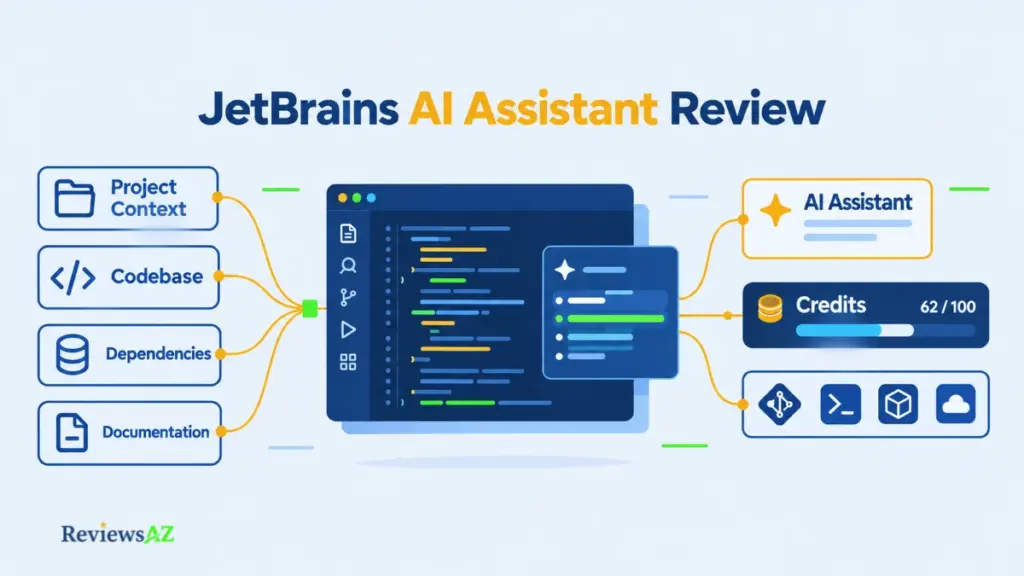
JetBrains AI Assistant Review: Features, Pricing, Privacy, and Workflow Fit

The AI Chat icon sits in your JetBrains sidebar as if the assistant is already installed. It isn’t. JetBrains’ installation documentation says the plugin ships disabled, and only organizations see it switched on by default. The icon is a doorway, not the assistant, and it cannot touch your code until you install the plugin.
That gap between the icon and the product is where this JetBrains AI Assistant Review begins. Whether it deserves a subscription comes down to four things: which plan applies to you, how AI Credits are spent, what leaves your machine when you use cloud models, and whether another assistant fits your editor habits better. Everything below draws on JetBrains’ official documentation, dated user reports, and clear unknowns. No install, no benchmark, no productivity number without a visible method.
By the end you should know whether this is worth trying, worth paying for, or neither. For the wider field, our overview of AI code editors and IDEs maps the category.
JetBrains AI Assistant at a glance
- Best for: developers who already work in a supported JetBrains IDE and want AI inside the workflow they have.
- Biggest strength: project-aware AI Chat and inline assistance, plus documented database features for DataGrip and IDEs with the Database Tools plugin.
- Biggest limitation: cloud features draw on plan AI Credits, while completion does not, and a credit is not a fixed number of requests. Local-model support does not mean every feature or agent works with every model.
- Key decision: confirm the integration helps in your IDE, then weigh recurring credits, top-up terms, privacy, and alternatives. Current plan pricing lives in the pricing section.
JetBrains AI Assistant Review: What It Is and Where It Fits
Anyone settled into IntelliJ IDEA, PyCharm or WebStorm knows the trade: a familiar editor with tuned habits on one side, a new tool that might do more on the other.
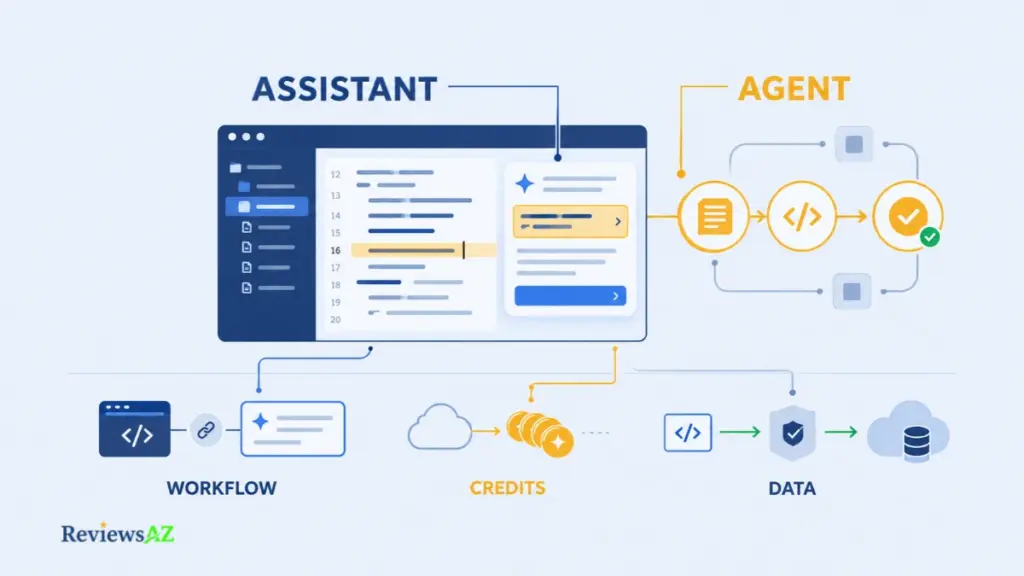
JetBrains AI Assistant is JetBrains’ AI service for its IDEs, covering context-aware AI Chat, in-editor help, code generation, and support for tests, documentation and refactoring. Cloud-model features draw on plan AI Credits, while code completion does not, and the plugin has to be enabled first. Whether it earns its cost depends on your IDE, plan and data requirements.
The Crucial Distinction: AI Assistant vs. Coding Agents
The assistant is the chat, completion and in-editor layer. Agents are a separate layer you pick inside AI Chat: JetBrains lists its own Junie next to third-party agents such as Claude Agent, OpenAI Codex and Gemini CLI, plus any ACP-compatible agent you connect with your own subscription. Agents work through larger tasks instead of answering one prompt at a time, and the model providers sit underneath all of it.
All of this belongs to the wider AI code editor category, though an assistant living in your existing IDE is a different proposition from a standalone AI editor. Because the pieces share an interface, reviews and screenshots tend to blur them together. Check which one a claim describes before leaning on it.
The Main Decision: Workflow Fit, Credits, and Data Handling
Three questions carry most of the decision, and a price tag settles none of them. A credit is not a fixed number of tasks, so cost needs a realistic guess at your own usage.
| Decision factor | What to verify |
|---|---|
| Workflow fit | IDE edition, version, and whether the feature is documented for it |
| Cost | Your plan, its AI Credits, top-up terms, billing interval |
| Data handling | Which provider receives prompts and code context, and what your policy allows |
How This Review Separates Official Documentation, User Reports, and Unknowns
Where a claim matters, the text names its backing: JetBrains’ statements and documentation, user reports with their dates, or an open unknown. Nothing here comes from hands-on testing, so unknowns are named instead of smoothed over. Old forum posts count as anecdotes.
JetBrains AI Assistant Features: What the Documentation Confirms
How much of what follows will you actually be able to use? That depends on more than the plan. IDE, version, model and configuration all move the answer.
- Code completion. It suggests what to type and what to change next, right inside the editor. Because it runs on JetBrains’ own models, it never touches your AI Credits, but availability still varies by IDE, version and edition.
- AI Chat. The context-aware conversation about your project and any code you select. What it can see depends on your plan, the model you pick and the provider behind it. It does consume credits.
- Code generation. Writing new code from a description, either in the editor or inside chat. Plan, credits and model shape how much of it you get.
- Refactoring, tests and documentation. The routine chores: refactoring help, generating tests and docstrings, explaining selected code, drafting commit messages. Each one costs credits and only works where your IDE supports it.
- Agents. Junie and any third-party agents you plug into AI Chat, built for larger tasks rather than one prompt at a time. What you can run depends on agent support, model type and your plan.
Inline Completion, AI Chat, and Code Generation
Completion works while you type; chat and generation happen when you ask. JetBrains’ FAQ says completion and next edit suggestions run on its own models and do not consume AI quota, and AI Free includes unlimited completion. Completion and the credit-metered cloud features are therefore two separate cost questions.
AI Chat is described as context-aware, so it can draw on your project and selected code instead of starting from a blank prompt. Code generation writes new code from a description, either in the editor or in chat. The two routes do not draw on a credit equally: JetBrains’ own rough numbers put code generation in the editor at roughly four times the requests per credit compared with the same task in chat. JetBrains promises no fixed number of tasks either way, and context and tokens move the counts regardless.
The same documentation covers refactoring help, test and documentation generation, and explanations of selected code. JetBrains’ credit examples add documentation requests and commit messages, so routine chores count against the allowance too.
Agents sit apart. Current documentation says agents cannot use local models, nor can configured MCP tools work with them. Anyone who needs local inference as a hard requirement can rule out the agent route on that setup.
What Can JetBrains AI Assistant Actually Do?
Picture inheriting a module nobody is left to explain, with a method to change by Friday. That is the afternoon these features are pitched at, and a fair yardstick for their claims.
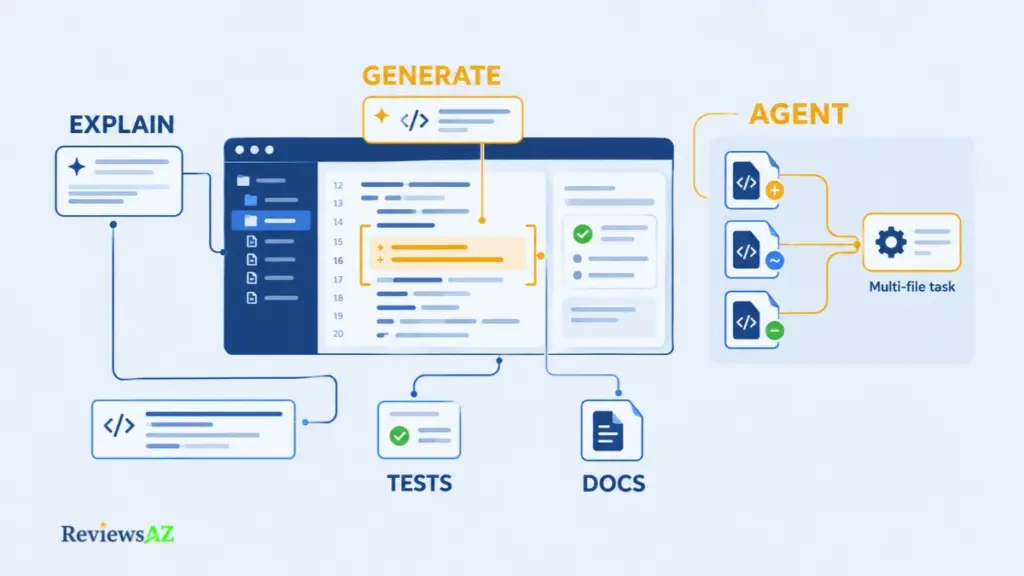
Documentation confirms that JetBrains AI Assistant can explain code, generate it, and help with refactoring, tests, documentation and commit messages. It does not confirm how good any of that output is, and we did not test it. The short version, before the detail:
- Explains selected code. This is a documented action with a credit estimate, confirmed in JetBrains’ own documentation. How accurate it is on your codebase is something we simply don’t know.
- Generates code in chat and in the editor. Documented, with different credit costs for each route. The documentation says nothing about how correct or how clean that output actually is.
- Handles refactoring, tests, documentation and commit messages. All listed as documented actions, though how much review each one needs afterward is left for you to find out.
- Handles multi-file work. Agents such as Junie take on the larger tasks, and heavy agent use consumes more quota, according to official documentation. Benchmark figures for this circulate elsewhere, but we found no inspectable method behind them, so none are repeated here.
- Saves time or raises productivity. Nothing in the documentation makes this claim, and we found no measured gain anywhere we looked.
- Works well in daily use. The documentation stays silent here too. User reports exist, but they are dated and mixed.
That is the evidence on the table. Two things are worth walking through before you decide: what the assistant can actually see and where it hands off to agents, then how to check its output before it costs you anything.
What the Assistant Can See, and Where Agents Take Over
Explaining code is the easiest capability to picture and the easiest to check, since the source sits right in front of you. Select a method, ask what it does, compare. Chat is described as context-aware, which also means context is what travels to the model provider, a point the privacy section takes up.
A reply you paste into one file cannot do what an agent does when it plans a change, edits several files and runs steps. That territory belongs to Junie and compatible agents, which this review keeps apart from the assistant. Benchmark figures for Junie circulate in other write-ups, but the pages we opened give no inspectable method, so we repeat none of them. JetBrains’ own documentation does say that extensive agent use leads to higher quota consumption, and that is the one cost signal worth taking from it.
How to Review AI Output Before It Costs You
Generation moves effort from typing to reviewing, and the trade only pays when reviewing is cheaper than writing. That tends to hold for bounded tasks you can check quickly, such as drafting tests, documentation or commit messages, and holds less well for sprawling changes. This is editorial judgment, not a test result.
Code that compiles and reads well can still be wrong. So review generated code like a stranger’s pull request, and run your tests before it nears a commit. The assistant changes who does the first pass, not who is accountable for the last. That is the practical answer for the Friday deadline you met at the top of this section, and for every deadline after it.
Reader report, April 21, 2026. A post on Think Different describes pairing AI Assistant with Code With Me for remote code reviews and discusses measuring whether changes last. It is one writer’s account: it shows a workflow, not general results.
Ease of Use Inside JetBrains IDEs
A new tool gets one real chance on a busy day, and friction at the start often decides whether it gets a second.
Getting started takes a deliberate step: the plugin is not bundled with the IDE and is disabled by default, though organizations can have it enabled for their users. After that, completion and AI Chat are the two everyday entry points, and your edition and plan decide what is available.
Plugin, Activation, and Account Options
Will AI Free be there in your IDE?
Not in Android Studio, in IntelliJ IDEA without an Ultimate subscription, or in PyCharm without a Pro subscription, according to JetBrains’ FAQ. Elsewhere, availability varies by IDE and version. Check your edition before building a workflow around it.
JetBrains lists several routes in: AI Free, a trial, paid individual plans and organization plans. After you install the plugin, it checks your license. A lapsed subscription falls back to AI Free where that tier exists.
A free way in, and one you may already own. AI Free covers unlimited completion, unlimited local models and a small cloud quota. New users also get a 30-day AI Pro trial, and if you already hold an All Products Pack or dotUltimate subscription, AI Pro is included with what you pay for.
Completion Versus Chat in Daily Work
Completion asks little of you: accept the suggestion or keep typing. Chat asks you to phrase a question, wait and read. Expect to learn two habits, not one.
Speed is where user reports get loud, and old. A personal post from March 2025, labeled work in progress, describes performance issues in WebStorm. A Reddit thread from roughly two years ago holds mixed, context-dependent opinions, including early product worries.
Team Onboarding and Configuration
For a team the question changes from whether it works to who decides. Organizations can have the plugin enabled by default, and JetBrains’ plan documentation covers how organization quotas work; the pricing section shows how those plans differ. Provider choice and data handling deserve settling before a rollout, and the privacy section lists what to ask. A small authorized pilot will teach you more about credit use and daily friction than any review can, this one included.
JetBrains AI Assistant in IntelliJ IDEA, PyCharm, WebStorm, and DataGrip
Take one ordinary task: working out why a query is slow. JetBrains documents query-plan explanation for it in DataGrip and in IDEs that include the Database Tools and SQL plugin. Whether the same help exists in your IntelliJ IDEA, PyCharm or WebStorm depends on what your edition bundles, and the answer is not safe to assume.
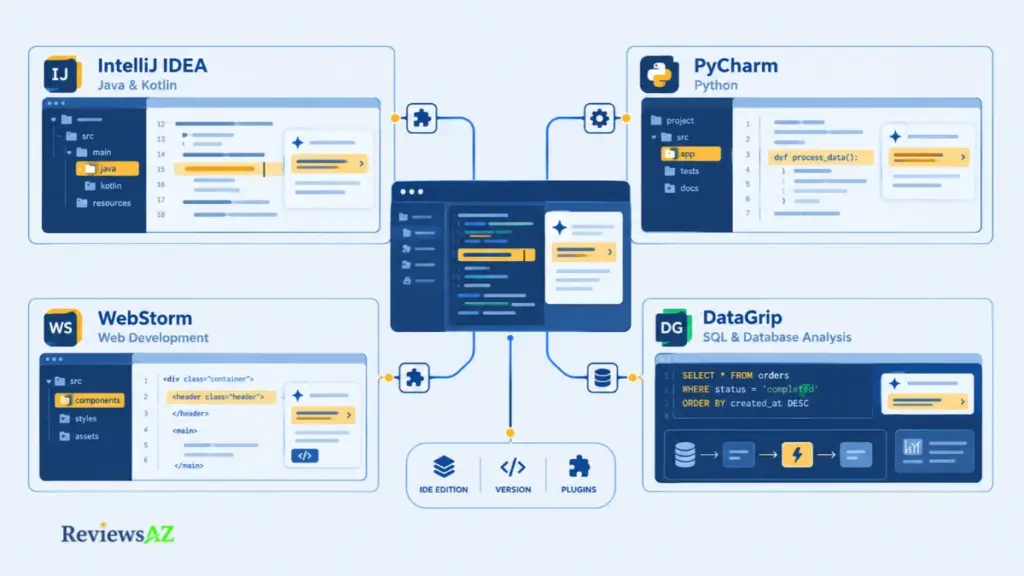
Three of those IDEs follow the same pattern, each with a single catch worth knowing before you commit:
- IntelliJ IDEA covers the general features for Java and Kotlin work, and adds database help only where the Database Tools and SQL plugin is present. The catch: no AI Free unless you hold an Ultimate subscription.
- PyCharm runs the same set for Python, where most days come down to explaining unfamiliar code, drafting tests, and writing documentation, which is exactly where the general feature set lands. The catch is different but no less sharp: no AI Free without a Pro subscription. If you are weighing editors beyond PyCharm, our look at an AI code editor for Python widens the field.
- WebStorm follows the same pattern for web work, where TypeScript, markup, styles and templates all sit in one repository. Check it in your version before trusting it across every file type. For options outside JetBrains, start with our take on an AI IDE for web development.
One honest limit before moving to databases: none of the documentation we read promises stronger output for Java, Kotlin, Python or JavaScript than for the others. Any claim that one language gets a better result is an assumption, unless someone publishes a method behind it.
DataGrip is a different case, and the documentation itself does the persuading here rather than the edition you happen to own. JetBrains’ database documentation covers natural-language SQL generation, query-plan explanation and query optimization, available in DataGrip and in IDEs with the Database Tools and SQL plugin. Some versions are required, and the optimization feature may ask you to attach the database schema.
Backend developers choosing tools around the database layer can compare them in our overview of AI database tools for backend developers. Query tuning itself goes further than a product review can, which is exactly what our guide to optimizing SQL queries with AI picks up.
Everywhere else in this section, the assistant simply rides along with the editor you were already going to use. That is fine, as long as you already wanted that editor for other reasons.
JetBrains AI Assistant Security and Privacy: What Happens to Code?
Two different things get called data sharing in this product, and they are easy to blur. One is the processing needed to answer your request. The other is an optional collection setting.
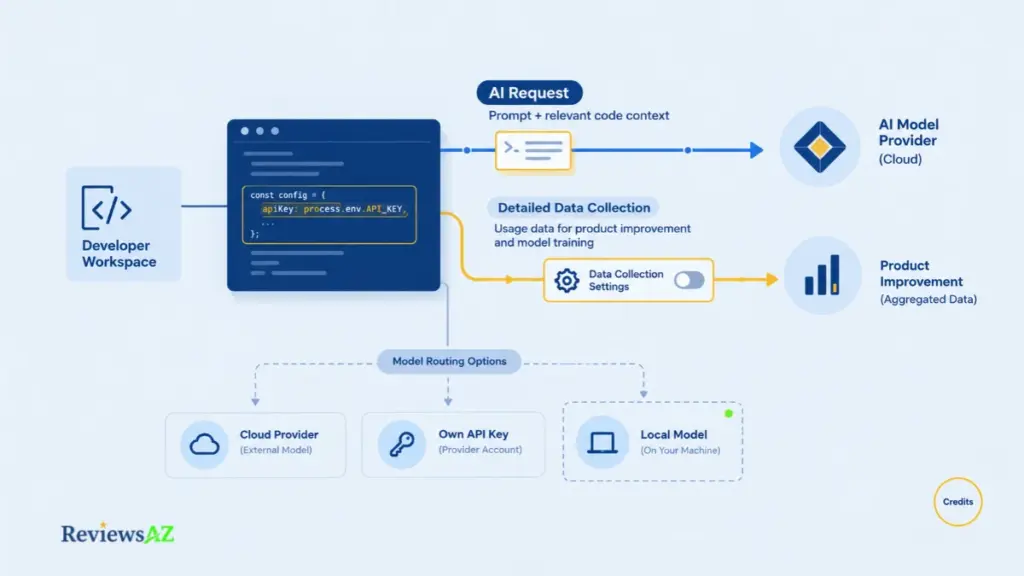
Cloud AI features can send your prompts and code context to the LLM provider that handles the request. Separately, detailed code-related data collection is described as opt-in and disabled by default, with a licensing exception covered below. A local model or your own API key changes the route for some features, not all.
Context Sent to an LLM Provider
When you use a cloud AI feature, your prompt and the code context it carries can go to an LLM provider that generates the answer. That is how the feature works, and JetBrains’ official data-handling documentation says so. The same page explains how to open a log of the prompts AI Assistant sends, kept for the current session.
For proprietary code, the practical question is whether sending that context to a provider fits your policy. That is a decision for you or your security team, and not legal advice from us. JetBrains states that it does not work with LLM providers that use customer data for training; confirm what each provider’s terms say for the features you use. Simplified illustration of the possible routes. It is not a product screenshot, and not every feature supports every route.
Before connecting a production database. JetBrains says AI Assistant in DataGrip does not share or get access to the data in your database. That statement covers the data inside your tables, not the schema or the queries themselves. When you attach a schema for query optimization, you hand the model your table structure. Read the database documentation first.
When Detailed Data Collection Is On
There is also a separate setting. JetBrains’ data-handling documentation describes an opt-in collection of detailed usage data, disabled by default. Its FAQ adds two qualifications: for non-commercial licenses the setting is on by default with an opt-out, and for company licenses admins manage it centrally. If you use a non-commercial license, check that setting first.
When it is on, JetBrains says the data can include prompts, responses, code snippets and edit history, is used for product improvement and for training JetBrains’ own models, is not shared with third parties, and is kept for up to a year. A blanket line such as “your code is never used for training” would therefore be wrong in one direction, and “your code trains the models” wrong in the other. Read each statement in its original wording.
One gap worth knowing about: JetBrains does not publish a separate retention window for the cloud-processing side. The one-year figure belongs to the optional collection setting. If retention matters to your policy, ask JetBrains directly.
BYOK, Local Models, and Their Limits
Provider choice is the main lever you hold. JetBrains documents your own API keys for Anthropic, OpenAI and other OpenAI-compatible providers, and local models run through tools such as Ollama or LM Studio, as the custom models documentation explains. AI Free includes unlimited use of local models. Provider lists change often, so check the current one.
Local does not mean everywhere. Support varies by feature, agents cannot use local models, and configured MCP tools are unavailable with them, per current documentation. A local model may reduce reliance on cloud inference without being a privacy guarantee for every workflow, and with your own key your provider’s terms sit alongside JetBrains’.
Teams also need to know who controls provider choice and access. JetBrains lets admins in organizations on JetBrains Central grant or revoke AI access and set credit limits, as the pricing section describes. Anything beyond that is worth asking JetBrains directly before a rollout.
JetBrains AI Assistant Pricing and AI Credits
How much does JetBrains AI Assistant cost? The sticker price is easy to find. What it buys is harder to see, because the real unit is the AI Credit.
JetBrains’ plan documentation lists individual plans as AI Free at $0 with 3 credits, AI Pro at $10 with 10, and AI Ultimate at $30 with 35, each per 30 days. A credit is not a fixed number of tasks.
Individual Plans Versus Organization Plans
Organizations pay different rates for the same schemes, and one tier belongs to them alone. AI Enterprise sits at $60, with a quota described as on par with or higher than Ultimate and no exact figure disclosed. Enterprise top-ups are not yet available, and free trials exist for both audiences.
| Plan | Individual (per 30 days) | Organization (per 30 days) |
|---|---|---|
| AI Free | $0 · 3 credits | $0 · 3 credits |
| AI Pro | $10 · 10 credits | $20 · 20 credits |
| AI Ultimate | $30 · 35 credits | $60 · 70 credits |
| AI Enterprise | Organizations only | $60 · on par with or higher than Ultimate |
| AI Trial | Free · 10 credits | Free · 20 credits |
Treat the table as a starting point. Prices and allowances can differ by account type and billing path, and the number that matters is the one on your own checkout page, where taxes, bundles and edition all land.
Check what you already own before paying. AI Pro comes with an All Products Pack or dotUltimate subscription, though not with complimentary student, teacher, classroom or open-source packs, and it cannot be activated when the IDE license comes from a License Server. DataSpell includes AI Pro too, tied to that product only. If three free credits look thin, our list of the best free AI code editors shows what else costs nothing.
Monthly Versus Annual Billing
The official store shows annual billing at $100 per user per year for Pro and $300 for Ultimate, before taxes. That works out to about $8.33 and $25 a month, against $10 and $30 billed monthly.
The saving is real, but read the unit carefully: $8.33 a month refers to the annual price expressed monthly, not a monthly plan. The table above lists credits per 30 days, so confirm at checkout how that allowance applies to an annual term.
Per credit, JetBrains states each credit equals $1 USD. AI Pro works out to $1.00 a credit and AI Ultimate to about $0.86, so Ultimate buys 3.5 times the credits for three times the price.
That arithmetic ranks the plans. It says nothing about what one credit does for you, since consumption varies with context and tokens.
JetBrains names three habits that burn credits faster: long chat threads that mix topics, high-cost models, and heavy agent use. Starting a fresh chat per task is the cheapest fix.
Our judgment: unless your usage is already clear, start on AI Free or the trial, and consider Ultimate only if Pro’s allowance runs out regularly.
The monthly quota resets every 30 days from first use, and unused credits do not roll over. Top-ups, available on the trial, Pro and Ultimate but not on AI Free, stay valid for 12 months and are spent only after the monthly quota runs out.
Organizations are being moved to JetBrains Central gradually. There, credits sit in a shared pool, and admins can set a default per-user limit and individual limits. Which model your organization runs decides what you can control, so ask your admin.
Pros and Cons of JetBrains AI Assistant
A few of these lines could sit in either camp depending on who is reading. Native integration is a strength for a team that already lives in JetBrains and a lock-in for one that mixes editors. Strengths come first, limitations after, and the whole list rests on documented features and limits, not test results.
Pros: What Works Well
- Native to the IDE. The assistant lives inside the IDE you already use, with context-aware AI Chat and in-editor actions, so there is no second editor to adopt.
- A broad documented task range. Code explanations, generation, refactoring, tests, documentation and commit messages are all listed. That describes what exists, not how good the output is.
- More than one model route. Third-party models through JetBrains, your own API key, and local models for some features.
- Database help. Text-to-SQL, query-plan explanation and query optimization are documented for DataGrip and IDEs with the Database Tools and SQL plugin.
- A free way in. AI Free includes unlimited completion, unlimited local models and a small cloud quota, subject to your edition.
Cons: What Deserves a Harder Look
- Cost is hard to forecast. Cloud features spend credits, and the documentation says consumption varies with context and tokens, so the price table alone will not tell you what a month costs.
- Availability depends on many things. IDE, version, edition, plan, model and configuration all play a part, and AI Free is absent from Android Studio, IntelliJ IDEA without Ultimate and PyCharm without Pro.
- It stays in JetBrains IDEs. The workflow does not follow you into other editors or a mixed-editor team.
- Local use has boundaries. Agents cannot use local models, and configured MCP tools are unavailable with them.
- Data policy needs a check. Cloud features can send prompts and code context to an LLM provider, and the detailed collection setting is on by default for non-commercial licenses.
- Enterprise sizing is murky. AI Enterprise’s exact quota is undisclosed, which complicates sizing a large rollout.
Weigh each side against your IDE, how heavily you would use cloud features, and your data policy. Quality, speed and productivity appear in neither list, because nothing independent supports a verdict on them and the user reports we found are mixed and dated.
Who Should Use JetBrains AI Assistant? Five Checks Before You Pay
None of these five checks asks whether the AI is any good. They ask whether the product can work in your setup, at a cost and under a data policy you can live with, which is where most decisions are actually settled.
- Confirm your IDE, edition and version. The plugin is not bundled and is off by default, and AI Free is absent from Android Studio, IntelliJ IDEA without Ultimate and PyCharm without Pro. Database features come with DataGrip or the Database Tools and SQL plugin. When your setup lacks what you need, stop here, because nothing further down the list can repair it.
- Estimate how often you would use cloud-model features. Chat, generation, explanations and commit messages all draw on credits, and consumption shifts with context and tokens. Count the cloud actions in a typical week, then run AI Free or the trial and watch how quickly the allowance moves. Free is not unlimited: AI Free carries 3 cloud credits per 30 days, alongside unlimited completion and local models, so use it to measure cloud usage rather than to assume you are covered.
- Match the plan to that usage. Set monthly prices against monthly prices, look for an AI plan already bundled in a JetBrains subscription you own, and remember that top-ups stay valid for 12 months. Your checkout total is the figure that counts, since taxes, bundles and billing path all move it.
- Review code-data and provider requirements. Cloud features can send prompts and code context to an LLM provider. Know which provider handles your requests and whether your policy permits it, and check the detailed-collection setting, which is on by default for non-commercial licenses.
- Decide whether the limits change the choice. Local models cover some features only, and agents cannot use them. Anyone moving between editors may find that GitHub’s documented Copilot support across several of them outweighs any single feature.
When all five hold, a trial costs little. When one fails, treat it as the deciding fact instead of something to work around.
JetBrains AI Assistant Alternatives
You gave the plugin a week and it delivered what it promised. The friction lay elsewhere: half your day happens in another editor, or pull requests slip through unreviewed, or your team wants a plan on paper before anyone writes code. Each of those points to a different alternative, and none to a universal replacement. We rank none of them on price, accuracy or privacy. We verified none of those here. Check current terms before calling any of them cheaper or safer.
GitHub Copilot for Cross-Editor Continuity
Copilot is the alternative most JetBrains users weigh first. GitHub documents it inside JetBrains IDEs and across several others, so a single subscription can follow you or a mixed-editor team. One caution: the feature matrix is a public preview, and it marks some JetBrains features, custom agents and custom instructions among them, as preview, so check the column for the feature you need. For someone who never leaves a JetBrains IDE, the case disappears. For SQL-sensitive teams, one gap deserves a check: no Copilot counterpart to JetBrains’ Text-to-SQL and query-plan explanation appears in the documentation we reviewed.
Two pages go deeper. For the side-by-side that decides fit, our GitHub Copilot vs JetBrains AI Assistant comparison lines up editors, plan structure, credit units, provider control and training defaults. The GitHub Copilot review then covers Copilot on its own terms.
Augment Code for Repository-Aware Code Review
Augment Code Review does a different job from in-editor assistance. Its documentation describes an agent that reviews pull requests on GitHub using the code diff, the whole repository through Augment’s Context Engine, and the PR title and description. Reviews can trigger automatically or on a manual comment, and teams can set repository-specific guidelines. It works with github.com and GitHub Enterprise Cloud, which suits teams whose bottleneck is review rather than typing.
Our Augment Code review looks closer. Vendor claims about review quality remain marketing until independently measured, and none are repeated here.
Kiro IDE When Its Workflow Fits the Team
Kiro is its own IDE, so adopting it means leaving JetBrains habits behind. The documented workflow centers on specs that break a feature into structured steps ending in discrete, trackable tasks, steering files that carry project guidance, and MCP connections to external tools, and its changelog adds hooks that automate work such as updating documentation or generating tests when a file is saved. Teams that want a plan before code are the natural audience; our Kiro IDE review weighs that trade in more detail.
Frequently Asked Questions About JetBrains AI Assistant Review
Most of what people type into a search box about this tool is shorter than anything covered above: a yes or no, a dollar figure, one point of comparison. This JetBrains AI Assistant Review closes with exactly those questions, the ones developers actually search before they commit to a plan.
Is JetBrains AI Assistant worth it?
For developers who already work in a supported JetBrains IDE, often yes. AI Free and the trial let you measure your own usage before paying anything. Availability depends on your edition too: AI Free is missing from Android Studio, from IntelliJ IDEA without Ultimate, and from PyCharm without Pro.
How much does JetBrains AI Assistant cost?
Individual plans run AI Free at $0 with 3 credits, AI Pro at $10 with 10 credits, and AI Ultimate at $30 with 35 credits, each per 30 days. Organization Pro and Ultimate cost twice as much and carry twice the credits. A credit is not a fixed number of tasks, and code completion does not consume any.
What is the difference between JetBrains AI Assistant and Junie?
AI Assistant is the chat, completion and in-editor layer. Junie is JetBrains’ coding agent, chosen inside AI Chat for larger tasks that run across several steps. Third-party agents are a separate category again, and heavy agent use burns through credits faster than regular chat.
Does JetBrains AI Assistant send my code to an AI provider?
Yes, for cloud features. Your prompt and the relevant code context go to the LLM provider handling that request. JetBrains states it does not work with providers that use customer data for training, though a separate, optional data-collection setting is on by default for non-commercial licenses. Check your own policy before using it on proprietary code.
Can JetBrains AI Assistant use local models or my own API key?
For some features, yes. JetBrains documents your own API keys for Anthropic, OpenAI and other OpenAI-compatible providers, plus local models through tools like Ollama or LM Studio. Agents cannot use local models, and configured MCP tools are unavailable with them.
Does JetBrains AI Assistant support SQL in DataGrip?
Yes. JetBrains documents natural-language Text-to-SQL generation, query-plan explanation and query optimization for DataGrip and for IDEs with the Database Tools and SQL plugin. Optimization may ask you to attach the database schema, so check version availability first.
Is JetBrains AI Assistant better than GitHub Copilot?
Neither wins outright. JetBrains AI Assistant fits developers who stay inside JetBrains IDEs and want its documented SQL features. GitHub Copilot fits developers who move across editors, since it follows you to several of them on one subscription.
Related Posts:
Cursor vs Claude Code vs Codex vs GitHub Copilot
AI Code Assistants
AI Coding Agents
Final Verdict: Is JetBrains AI Assistant Worth It?
The answer is not yes or no. It depends on your IDE, your credit usage, and your data policy. This verdict rests on documentation and dated reports, not on a test we could have run. Four cases cover the ground.
Worth trying if you work in a supported JetBrains IDE and edition. AI Free and the trial let you measure your own usage at no cost.
Worth paying for if that measured usage regularly outruns the free allowance, a plan covers it at a price you accept, and your data policy allows prompts and code context to reach an LLM provider.
Not ideal if you move between editors, or you need agents and MCP tools to run on local models, which they cannot.
Avoid it for now if you are in an edition without AI Free and unwilling to pay, or your policy bars sending code context to a provider and the features you need have no local-model route.
One more rule of thumb: judge it by what you stopped doing by hand, not by what it added. After a week on AI Free or the trial, if you can name a chore the assistant took off your plate, price a plan against that. If you cannot, keep your money. That one-week test is your next step.
If Copilot is still in the mix, our GitHub Copilot vs JetBrains AI Assistant comparison lays the trade-offs out in full.