GitHub Copilot vs JetBrains AI Assistant: Which Setup Fits Your Workflow?

A team buys a GitHub Copilot seat for every developer, then someone asks why half the JetBrains users also want a JetBrains AI subscription, apparently for the same job. That confusion alone shows that GitHub Copilot vs JetBrains AI Assistant isn’t the simple two-way choice it appears to be.
Since June 2026, JetBrains AI Assistant lets you pick GitHub Copilot as an agent inside its own interface. That sits alongside the standalone Copilot plugin and JetBrains’ own AI service, so inside a JetBrains IDE you’re really choosing among three entry paths, each with different activation requirements, billing implications, and data rules.
This page follows those paths rather than the logos, drawing on official GitHub and JetBrains documentation. It makes no claim about which tool writes better code or responds faster, since no reproducible test backs that up here. Readers still mapping the wider AI code editor landscape will find that overview a better starting point; this page narrows to one decision.
Quick decision box
- Best for: standalone GitHub Copilot suits mixed-IDE teams who want one assistant across several editors and the terminal; JetBrains AI Assistant’s own service suits developers who want AI built into the JetBrains IDE they already use; Copilot inside JetBrains AI Assistant suits JetBrains users who specifically want Copilot as the selected agent and already have, or will buy, a Copilot subscription.
- Biggest strength: a clear choice of entry path rather than a presumed winner in code quality. GitHub brings broad editor coverage and its own credit system; JetBrains brings an IDE-native surface and documented agent options.
- Biggest limitation: the integrated Copilot agent needs a separate GitHub sign-in and Copilot subscription, ignores AI Assistant’s
.aiignorefile, and doesn’t activate in Remote Development sessions; JetBrains’ cloud features draw on AI Credits, and what you get depends on how you activate. - Key decision: which IDEs the assistant must run in, which plan or agent you activate, and which data and permissions your team can accept.
- Current status: both vendors offer a free individual tier beside paid ones, and both meter usage in credits worth very different amounts; exact figures are in the pricing section.
- Caveat: plan limits, policies, and account terms can change, so confirm the current details before relying on them for a purchase decision.
GitHub Copilot vs JetBrains AI Assistant: What Are You Actually Choosing?
Two developers can both say they “use GitHub Copilot in JetBrains” and mean two different things, each with its own login and its own bill.
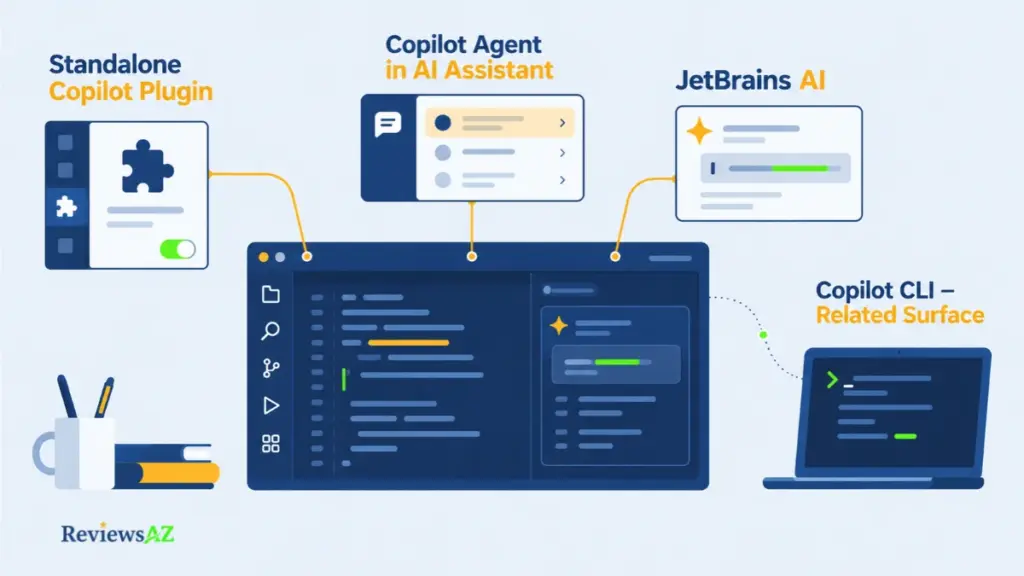
Inside a JetBrains IDE, you can use the standalone GitHub Copilot plugin, select GitHub Copilot as an agent within JetBrains AI Assistant, or use JetBrains’ own AI service and features. Each is activated differently and carries different controls. Copilot CLI is a related surface, not a fourth IDE option.
Three Ways to Use Copilot or JetBrains AI in a JetBrains Workflow
- Standalone Copilot plugin. GitHub’s own extension for JetBrains IDEs, tied to a GitHub plan.
- Copilot agent inside AI Assistant. Announced by GitHub on June 30, 2026, it appears within JetBrains’ interface and, according to JetBrains, signs in through GitHub OAuth.
- JetBrains AI service and features. JetBrains’ own offering, activated through a JetBrains AI plan, a provider API key, an OAuth provider account, or an ACP-compatible agent the IDE connects to.
What Is Included, What Requires a Separate Subscription
GitHub’s announcement says Copilot Agent in JetBrains AI Assistant needs its own GitHub Copilot authentication and subscription, so a JetBrains AI subscription does not cover it. JetBrains’ documentation adds two limits: the integrated agent does not use the AI Assistant .aiignore file, and it does not activate in Remote Development sessions.
Common mistake: Appearing in a JetBrains interface does not make Copilot part of a JetBrains plan. Confirm your GitHub account has an active Copilot subscription before you count on that path.
How This Comparison Labels Evidence
Every claim in this article sits in one of five buckets: Officially Supported, Documented Capability, User-Reported, Independently Verified, and Could Not Be Verified. A vendor statement is never passed off as a neutral finding. Nothing was installed or benchmarked here, so relative accuracy, latency, and productivity stay in the last bucket.
GitHub Copilot: Cross-IDE Features, Agents, and Limits
Copilot is less a single plugin than one account that reaches the editor, an agent, the terminal, and GitHub itself. The detailed GitHub Copilot review goes further into features and limits; what matters here is what changes the comparison.
Two things travel with the Copilot plan rather than the editor: the account it authenticates against, and the terms your security team will read. The editor surface changes; those two do not. GitHub lists Copilot across JetBrains IDEs, Visual Studio Code, Visual Studio, Eclipse, Xcode, Vim and Neovim, plus GitHub.com, a command-line tool, and a desktop app.
Supported Surfaces and Agent Workflows
Inside JetBrains IDEs, GitHub’s feature matrix, labeled public preview, marks chat, agent mode, edit mode, code review, MCP, checkpoints, code completion, and workspace indexing as supported. Next edit suggestions and several customization features remain in preview.
Beyond the IDE, every plan includes Copilot CLI and the Copilot app, and a cloud agent is listed among the agent features.
Feature availability warning: A supported row in the matrix does not guarantee identical behavior across every IDE and version. What you see in a VS Code demo may still be preview or missing in your JetBrains build. Confirm your client and version before planning a workflow around a feature.
What the Plan and Credit System Actually Covers
GitHub’s plan documentation says every plan carries an allowance of GitHub AI Credits. Code completions and next edit suggestions are the stated exception: they are not billed in credits and stay unlimited on paid plans. Other usage is measured in credits, and Free plans list agents as limited, so steady typing and heavy agent work share a subscription but not a billing rule. Allowances and prices sit in the pricing section.
Documented Limits and Verification Needs
Copilot runs on GitHub’s cloud platforms, so enterprises hosted on GitHub Enterprise Server assign licenses through a cloud enterprise account and use Copilot in local clients.
Feature parity inside JetBrains IDEs trails the Visual Studio side. GitHub’s customization table shows agent skills, custom agents, subagents, prompt files, and custom instructions as preview in JetBrains, while Visual Studio Code and Visual Studio list them as supported.
Free plans get auto model selection alone. The supported model list changes often, so this article names no specific models.
Documentation cannot settle how the tool feels on your codebase. That question, and how either setup compares with JetBrains AI Assistant on day-to-day work, needs a version-specific test rather than a feature table.
JetBrains AI Assistant: Native IDE Features, Agents, and Limits
How does AI get switched on inside a JetBrains IDE? The answer shapes more than any feature list, whether you work in IntelliJ IDEA, PyCharm, or WebStorm.
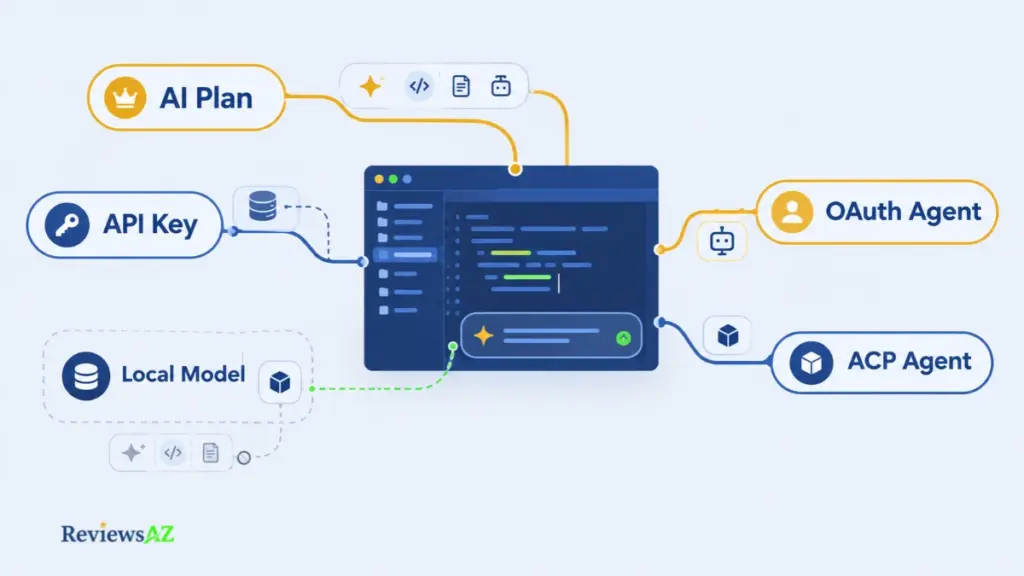
JetBrains AI Assistant is JetBrains’ in-IDE AI layer. By default it reaches cloud models through the JetBrains AI service, but JetBrains lists several other activation routes, and the route you pick decides which features you get and who bills for them. The JetBrains AI Assistant review covers its features, pricing, privacy, and workflow fit in full.
JetBrains AI Features and Activation Options
The listed features include AI Chat, inline code completion, next edit suggestions, and agents inside AI Chat. Which of them you get depends on the activation route.
- JetBrains AI subscription. The only route that requires a JetBrains subscription; it unlocks all AI Assistant features and the supported agents.
- API key (BYOK). Skips the JetBrains subscription and covers whatever features your provider’s models support, plus any agents that accept an API key.
- Provider account (OAuth). Also skips the JetBrains subscription, but activates the selected agent only.
- ACP-compatible agent. Connects an external agent without a JetBrains subscription, covering that agent alone.
Does a provider sign-in unlock the whole product?
According to JetBrains, no. OAuth covers the activated agent only, and the method you choose handles both requests and billing. The Agent Authorization section under Providers & API keys shows which one is live.
Integrated Agents, API Keys, and Local-Model Caveats
JetBrains’ documentation names Junie, Claude Agent, and Codex as integrated agents, and its 2026.2 pages show GitHub Copilot as another that activates through a provider account. ACP-compatible agents can be added as well, so AI agents in JetBrains IDEs do not all come from JetBrains.
Local models through Ollama or LM Studio can be connected, but they work in AI Chat only until you assign them to features manually, and any feature a model does not support is unavailable. JetBrains also marks its offline-mode steps as unavailable from IDE version 2025.3.1, which rules out any fully offline workflow claim.
What “Native” Does Not Prove
“Native” explains where the controls live, not that the results are better. JetBrains describes what each route covers; it does not rank them against Copilot, and no source here tests output quality. Claims about deeper project awareness would need a listed feature behind them, so none are made.
The Practical Differences That Should Drive Your Choice
Two chat panels can look identical on screen and still share almost nothing underneath: not the account, not the activation, not the bill. The differences that actually change a decision sit in six practical places, and none of them is about which model writes nicer code.
- IDE coverage. Copilot reaches JetBrains IDEs, VS Code, Visual Studio, Eclipse, Xcode, Vim and Neovim, plus GitHub.com, a CLI, and a desktop app. AI Assistant lives in JetBrains IDEs. That wider reach only matters if your team does not stay in one editor.
- Code completion. Both ship inline completion and next edit suggestions, and GitHub’s matrix still marks next edit suggestions as preview in JetBrains. JetBrains lets you swap the completion model, and its documentation notes that next edit suggestions depend on the model you assign; a plain completion model is not enough.
- Chat and agents. Chat, edit mode, and agent mode are all supported in Copilot’s JetBrains client. AI Assistant offers AI Chat with several agents, Copilot among them. The choice costs something: several agents means several sets of activation and billing rules, where Copilot on its own has one.
- Project context. GitHub’s matrix marks workspace indexing as supported in JetBrains, while custom instructions, prompt files, and other customization features remain in preview. JetBrains has
.aiignorecontrols, which the integrated Copilot agent does not use. How much relevant context either tool actually gathers on your codebase is untested here. - Git, pull request, and terminal workflows. Code review is listed as supported inside Copilot’s JetBrains client, so that row is not a differentiator. Copilot CLI, the desktop app, and the cloud agent sit outside the IDE, and no JetBrains AI Assistant equivalent for them appears in the documentation this article relies on. Treat parity as unverified in either direction.
- Permissions and billing. Copilot follows the GitHub plan and its organization policies. For AI Assistant, the activation route decides both features and billing, and Copilot inside it needs its own subscription. Both meter work in credits, but a GitHub AI Credit and a JetBrains AI Credit are not the same unit, and Copilot keeps code completions and next edit suggestions outside that meter entirely.
A feature checklist misleads, because a checkmark says a feature exists, not that it works on your code. That is also why no winner on output quality appears here: naming one would take reproducible side-by-side testing, and none was run for this article. Testing settles that question, not a checklist: run a handful of real tasks in both setups and watch for two failure points, context the tool missed on its own and review time on what it produced. The pilot section later in this page covers exactly how to structure that kind of test. Cost is the one place where the numbers look comparable and the units are not.
Pricing and AI Credits: Compare Spend, Not Raw Credit Counts
Ten dollars a month gets you 10 AI Credits with JetBrains AI Pro, or 1,000 base credits plus a 500-credit flex allowance with GitHub Copilot Pro. Those numbers look easy to compare, but they do not tell you how much work either plan will cover, because the two companies size a “credit” completely differently.
Individual Plans: Price and Credit Allowance
| Plan and Price | AI Credits (per 30 days) |
|---|---|
| GitHub Copilot Free, $0 | No published allowance; agents listed as limited |
| GitHub Copilot Pro, $10/month | 1,000 base + 500 flex = 1,500 |
| GitHub Copilot Pro+, $39/month | 3,900 base + 3,100 flex = 7,000 |
| GitHub Copilot Max, $100/month | 10,000 base + 10,000 flex = 20,000 |
| JetBrains AI Free, $0 | 3 credits |
| JetBrains AI Pro, $10/month | 10 credits |
| JetBrains AI Ultimate, $30/month | 35 credits |
JetBrains’ own math makes the Ultimate tier the better individual deal of the two: it bundles 35 credits for $30, which works out below its own nominal $1-per-credit rate. Copilot’s individual plans scale differently. Moving from Pro to Pro+ roughly quadruples the price and the combined credit total, so the per-credit rate stays close to flat rather than improving at the top tier.
Team and Enterprise Pricing
Organization pricing follows a similar doubling pattern on the JetBrains side. Org AI Pro costs $20 per seat with 20 credits per 30 days, and Org AI Ultimate costs $60 with 70 credits. That is double the individual Pro and Ultimate prices and double the credits, so the per-credit rate holds steady even though the entry cost doubles. JetBrains also lists an AI Enterprise tier at $60 per seat, with a credit quota described as on par with Ultimate or higher, though JetBrains has not published an exact number, and no credit top-up is available on that tier yet.
GitHub’s organization plans follow the same seat-based credit logic as its individual plans. Copilot Business runs $19 per seat per month with 1,900 credits, and Copilot Enterprise runs $39 per seat with 3,900 credits, the same ratio as the individual Pro and Pro+ tiers. Both business plans allow paid overage at $0.01 per credit once the included allowance runs out.
Free Does Not Mean the Same Thing on Both Sides
JetBrains’ free tier has coverage gaps worth checking before you count on it. AI Assistant’s free features are not available in Android Studio, in the Community Editions of PyCharm and IntelliJ IDEA, or in the free PyCharm Unified edition. A team standardized on those products may find the free tier is not actually an option.
Credit Units and Metered Usage
A credit is a billing unit, not a unit of work, and the two vendors price that unit far apart: a GitHub AI Credit is worth $0.01, a JetBrains AI Credit is worth $1. Neither company meters code completions or next edit suggestions this way; both exclude that usage from the credit count entirely on paid plans. JetBrains’ 30-day allowance also resets from the date you first activate it, not from your billing date, which matters if you are tracking usage against a calendar month. Routes that bypass a subscription, such as an API key or a provider OAuth account, are billed directly by that provider instead of through either vendor’s credit system.
None of these figures account for negotiated enterprise terms, taxes, regional pricing, or annual discounts, all of which sit outside what either vendor publishes openly. Confirm current pricing directly before a purchase decision: see GitHub Copilot plans and JetBrains AI plans and usage. Teams still weighing a no-cost option first may want to start with the best free AI code editors roundup before committing to either paid tier.
Best Fit by Workflow: JetBrains-Only, Mixed-IDE, Python, and Web Teams
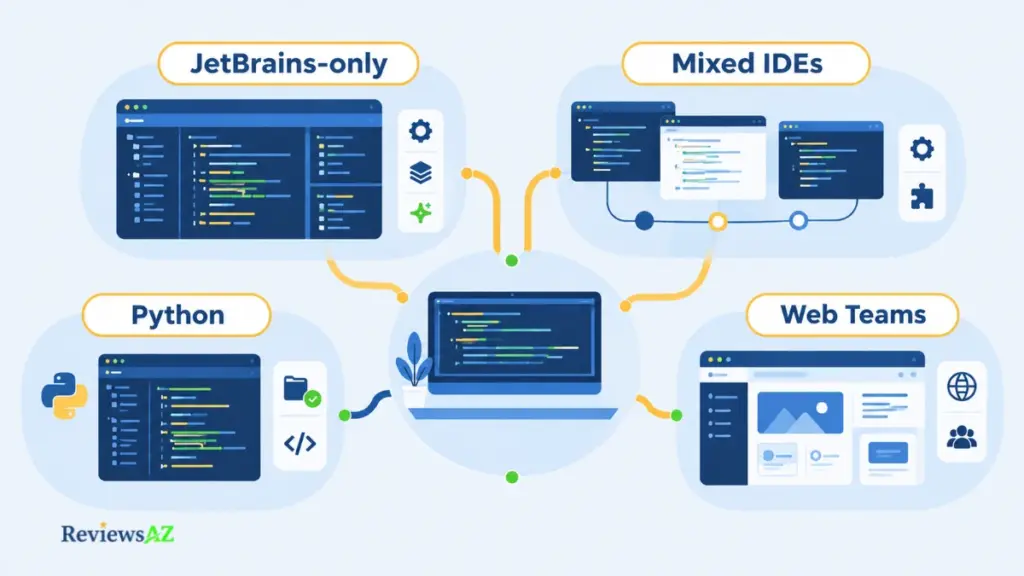
One team never leaves IntelliJ IDEA. Another opens VS Code before standup, WebStorm after lunch, and Xcode when the iOS build breaks. Ask both which AI assistant to standardize on and the answer flips, not because the tools change, but because the team shape does.
- Everything inside JetBrains IDEs. All three entry paths stay on the table here, so start with the licenses you already hold. An existing Copilot plan works through either the standalone plugin or the Copilot agent inside AI Assistant. On the JetBrains side, AI Pro is included at no extra cost with DataSpell, the All Products Pack, and dotUltimate, unless that license comes through a License Server. A standalone IntelliJ IDEA license carries no bundled AI Pro, so you are comparing JetBrains’ own free or paid tiers directly against a Copilot seat.
- Teams spread across editors. One Copilot plan follows the whole team: the extension in whichever editor each developer already uses, or the Copilot agent inside AI Assistant for the ones who stay in JetBrains, though feature parity still varies by client. AI Assistant on its own reaches JetBrains IDEs only, so standardizing on it across a mixed team means running two setups side by side.
- Python and free tiers. JetBrains keeps AI Free out of the Community Editions and out of PyCharm Unified on the free plan, so for those developers a JetBrains AI subscription starts at the $10 Pro tier while Copilot Free starts at zero. Whichever side they pick, the first experiment should run on real work long enough to show how fast the allowance goes. For Python-heavy work beyond these two, AI code editor for Python workflows covers the wider field.
- Web teams split between WebStorm and VS Code. The same coverage question at a smaller scale, with the same choice underneath: Copilot across both clients, or AI Assistant confined to WebStorm. Whether either handles TypeScript or framework-heavy code better belongs to your own stack, not to a feature list. AI IDE for web development workflows covers the field beyond these two.
The editor ecosystem narrows the shortlist, and that is as far as it can take you. Whether one option survives or all three do, each still needs the same few tasks run on real code before anyone commits. The IDE decides which tool can reach your team; only your own trial decides whether it helps them.
SQL and DataGrip: A Specific Workflow, Not a Universal Winner
Ask for “the top ten customers by order value” and an assistant can answer two ways: a query you paste in yourself, or an agent that explores your schema and runs the query on a live connection. The first is AI SQL assistance. The second needs a permissions review.
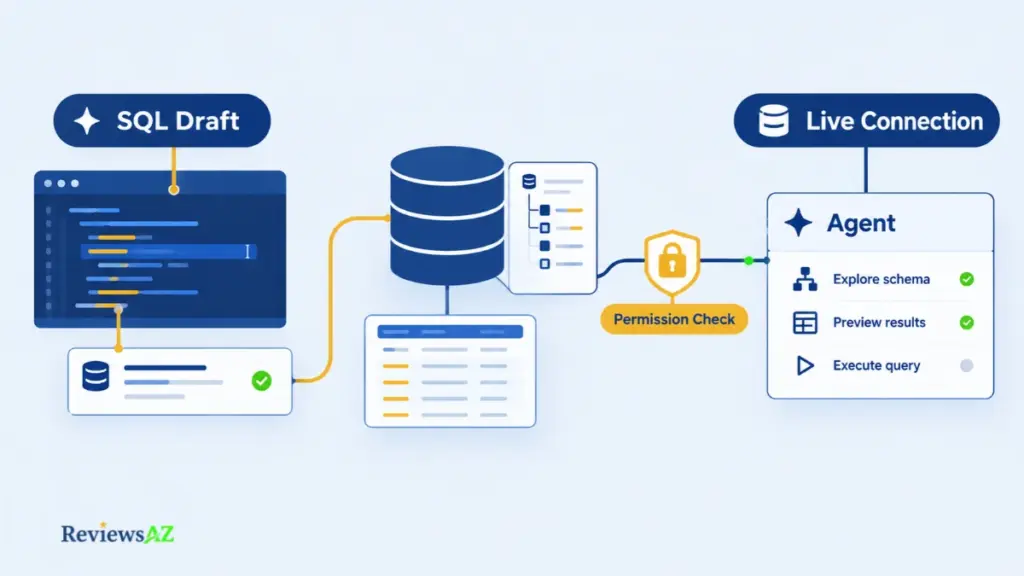
JetBrains documents both. The Copilot pages checked for this article describe only the first, which makes a database IDE the clearest place the two setups diverge.
Documented Database Features and Permissions
Standard AI Assistant help with generating, explaining, and optimizing SQL is listed for DataGrip and for IDEs carrying the Database Tools and SQL plugin; you attach a schema to the chat so the model can see it. The agent skills bundled with DataGrip, on by default, are listed for DataGrip alone and work in AI Chat, not the CLI.
Three things travel through that connection: the schema, the rows a query returns, and the query text itself. For agent workflows, JetBrains says only a small sample of results is first added to the agent’s context, though it is the actions the agent takes, not the sample size, that actually reach your database.
- Schema read. Agents browse schemas and introspect metadata, so start by mapping which schemas are attached or reachable.
- Data read. Agents preview data and retrieve results when settings and permissions allow; the tables that expose sensitive rows are the ones to name first.
- Query execution. Agents run queries on the live connection when allowed, and each run lands in query history, so account rights and approval prompts are the real gate.
- Schema modification. JetBrains documents agents creating tables, columns, and other database objects, and a connection-management skill that can create or update data sources; whether the account can write at all is the question that has to come first.
What to Settle Before You Connect
Run the first trial on a non-production copy. Confirm which database account the connection uses, whether the agent can write or only read, and whether approval prompts and query history record what it did.
Hold before connecting
Hold before connecting: On safety-sensitive databases, have a person approve every write and review the logged queries before the connection goes anywhere near production.
That absence is not proof Copilot cannot work with SQL, only that no schema-aware or live-connection workflow appears on the pages checked. Parity stays an open question. Backend developers choosing among database tools more broadly can start with AI database tools for backend developers.
Privacy, Training, and Enterprise Governance
Data sent to answer your request and data collected to improve the product follow different rules. Blur them and you will either panic over normal operation or miss a real opt-out.
Privacy depends on the exact account, plan, client, and activation route, not on the brand. A paid tier does not guarantee that interaction data stays out of training, and a local model does not keep every feature local. This article makes no zero-retention claim for any path, so check each one’s current terms.
GitHub Copilot Personal vs Business/Enterprise
According to GitHub’s April 2026 announcement on interaction data usage, since April 24, 2026, interaction data from Copilot Free, Pro, and Pro+ can be used to train its models unless the user opts out in Copilot settings under Privacy. The announcement does not mention the Max plan, so check the Privacy setting on any individual plan, Max included. Interaction data from Copilot Business, Copilot Enterprise, and enterprise-owned repositories is excluded. Private repository content “at rest” is not used, but code processed while Copilot is active counts as interaction data. GitHub says affected data may be shared with affiliates such as Microsoft, but not with third-party AI model providers.
JetBrains AI Service, Provider Accounts, and Detailed Data Collection
JetBrains says AI Assistant sends your requests and pieces of code to the model provider. A separate opt-in setting, Send detailed code-related data, is off by default; when enabled, JetBrains says it collects the full exchange with the model and may use it for product improvement and training AI models. Prompts sent to the provider can be reviewed in a local requests log.
With your own key, a provider account, or an ACP agent, requests go to that provider, and a local model covers only the features assigned to it. For DataGrip, JetBrains’ data-handling page says AI Assistant does not share or access database data. The agent workflows described earlier work differently: with the right permissions they can preview results and run queries, and a small sample of results enters the agent’s context. JetBrains’ pages do not spell out how the two statements relate, so confirm which path your setup uses.
Copilot Agent Caveats Inside JetBrains AI Assistant
Copilot inside AI Assistant signs in through GitHub OAuth, so the GitHub account and plan are the first thing to check. The limits noted earlier also bear on governance: it does not use the AI Assistant .aiignore file and does not activate in Remote Development sessions. A paid JetBrains tier does not mean this integration inherits the same controls.
Privacy settings: The defaults run in opposite directions. GitHub puts personal plans into training unless you opt out; JetBrains keeps detailed data collection off until you opt in. The setting, not the price, decides.
Administrative controls sit on a separate layer from what any individual user sees. GitHub lists policy management, content exclusion, and audit logs for organization plans, while JetBrains offers license management and AI-credit usage monitoring through its own console. These are administrative controls rather than editor features, so a developer-level trial will never show whether they work as described. Someone with admin access has to check them directly.
How to Run a Fair Pilot Before Standardizing
A tool that answers in two seconds and costs ten minutes of review is slower than one that answers in five and costs two. A demo cannot show that difference, and neither can a general impression. That difference only surfaces in a pilot that stays small, gets written down before it starts, and can be repeated.
- Freeze the setup first. Name the exact entry paths you are comparing, the plan behind each, the IDE versions, and one repository both will work in. Change any of these midway and the results stop being comparable.
- Choose 6 to 10 tasks that mirror real work, enough to show a pattern but few enough to run twice. Mix inline completion, a targeted edit or explanation, and a multi-file agent task with tests. Add an SQL task only if you work with databases. Write the list down before the first run, so nobody picks tasks that flatter one tool.
- Standardize the inputs. Same prompt wording, same attached files, same approval settings, same exclusion rules. Note any difference you cannot equalize, such as how each path handles excluded files.
- Record what happened on each task: whether the result was correct, whether tests passed, how much rework it needed, and how long it took to reach an accepted result. Note credit usage where the path meters it; a zero on a completion task is expected, not a gap in the sheet. Repeat the important tasks more than once, because output and spend both shift between runs.
- Take the privacy answers from the previous section to security or procurement before a seat is bought. Account type, training settings, admin policy, and contract terms can rule out a setup no matter how well it scored.
One scorecard row per task and run is enough, with columns for task, entry point, plan, result, human corrections, time to an accepted result, spend, and policy issues. Agree on the bar for adoption before the numbers come in, then read the finished sheet for patterns rather than totals. Judge spend per completed task in your own currency, since credits do not convert one to one between vendors. If one setup needs less correction on the tasks you do most and stays inside policy, standardize on it for that group. And if the scorecard shows neither setup fits, that is a result too.
Alternatives When Neither Setup Fits
Sometimes the honest answer is that neither setup fits yet. Forcing a choice between two tools that both fail the same constraint does not solve anything; it only postpones the problem.
- Editor mismatch. Your team works in an editor neither path serves well. Widening the list of AI coding assistant alternatives makes sense here, though it is not proof that any of them performs better.
- Data path rejected. Your security review turns down both data paths on offer. That is a structural block, not a reason to force a decision between the two anyway.
- A different shape of tool. The work calls for something other than an assistant layered onto the IDE you already use, such as a spec-driven agent built around a different workflow entirely.
- Budget limit. This one is not a reason to look elsewhere yet. Before swapping tools, the free tiers covered in the pricing section are the first place to check.
- Augment Code. A developer AI platform that installs through IDE extensions; the Augment Code Review evaluates it end to end.
- Kiro. An agentic IDE from AWS built around spec-driven development, not an assistant added to the editor you already use. The Kiro IDE Review covers it in detail.
- Choosing between them. Augment Code vs Kiro sets the two side by side, alongside other AI editor comparisons.
None of these is a drop-in replacement for either setup, and nothing here ranks them on output quality. They are what to read when the constraint is structural rather than a matter of preference. If one of them looks like a fit, it earns the same pilot as the two you just ruled out.
Frequently Asked Questions About AI Coding Assistants
Two readers land here most often. One wants to know whether Copilot runs inside IntelliJ IDEA; the other wants to know which tool is simply better. The GitHub Copilot vs JetBrains AI Assistant questions below split along that line. Most settle against a vendor page in a sentence, and one cannot be settled at all. These answers say which is which.
Does GitHub Copilot work in JetBrains IDEs?
Yes. GitHub documents Copilot for JetBrains IDEs and marks chat, agent mode, edit mode, code review, MCP, and code completion as supported there; next edit suggestions and customization features such as prompt files and custom instructions are still in preview. A supported row does not guarantee identical behavior across every IDE and version, so confirm yours before planning around a feature.
What is the difference between the Copilot plugin and Copilot Agent inside JetBrains AI Assistant?
Two different things sit under similar names. The plugin is GitHub’s own extension, installed in the IDE and tied to a GitHub plan. Copilot Agent is one option selected inside JetBrains AI Assistant’s chat, announced June 30, 2026. It signs in through GitHub OAuth, needs its own Copilot subscription, ignores AI Assistant’s .aiignore file, and does not activate in Remote Development sessions.
Is GitHub Copilot included with a JetBrains AI Assistant subscription?
No. Copilot Agent inside JetBrains AI Assistant requires separate GitHub Copilot authentication and a Copilot subscription, so a JetBrains AI plan does not cover it. Some JetBrains licenses include an AI quota, but that quota belongs to JetBrains’ service, not to Copilot.
How do GitHub AI Credits and JetBrains AI Credits compare?
They are monetary units for metering, not equal measures of work. A GitHub AI Credit is denominated at $0.01, and a JetBrains AI Credit at $1 in local currency, though JetBrains’ own bundles can price it lower. A task’s cost in credits depends on the model, tokens, and feature, so compare representative tasks and real balance changes rather than credit counts. Rates as verified on October 28, 2026.
Which tool is more accurate or faster at code completion?
Could Not Be Verified. The documentation reviewed for this article describes which completion features exist, not how accurate or fast they are, and no reproducible side-by-side test was run. Treat any claim of a clear winner skeptically, and measure correctness, rework, and time on your own code during a pilot.
How do their code privacy and model-training policies differ?
Since April 24, 2026, GitHub says interaction data from Copilot Free, Pro, and Pro+ may be used for training unless the user opts out; Max is not named in the announcement, and Business and Enterprise data is excluded. JetBrains works the other way: requests reach its model providers, and detailed code-related data collection is opt-in, off by default, and may then be used for training.
Can JetBrains AI Assistant agents work with SQL and DataGrip databases?
Yes, within documented limits. JetBrains lists database agent skills for DataGrip that browse schemas and, when settings and permissions allow, run queries on a live connection. They work in AI chat, not the CLI. JetBrains also documents agents creating tables, columns, and other database objects when write permissions allow. Because that touches live data and schema, run the first test on a non-production copy and review permissions before any live connection.
Related Posts:
AI Code Assistants
Final Verdict: Choose the Entry Point That Fits Your Workflow
Nothing above named a winner on output quality, and that is the finding rather than a gap in it. What the comparison does produce is a starting point for three different teams, and the fastest way to use everything above is to find yours among them.
- JetBrains-centric teams. Start with the AI already inside the IDE. When nearly all the work happens in one editor, JetBrains’ own features get the first evaluation, and that is where a search for the best AI coding assistant for JetBrains should begin, with what your license already includes, not with a new purchase. Check for a bundled AI quota, note the activation route, and know who ends up on the bill.
- Teams spread across editors. Start with Copilot, which GitHub lists for editors AI Assistant does not reach. One plan then covers the whole team instead of two, and the quieter benefit is administrative: one assistant means one set of account terms for your security team to review. What to check is client depth per IDE and the policy language behind each plan.
- JetBrains users who want Copilot’s agent specifically. Start with the integrated agent inside AI Assistant, and budget for it: a separate Copilot subscription and its own GitHub sign-in are part of the setup, along with documented limits that include no support for AI Assistant’s
.aiignorefile and no activation in Remote Development sessions. Pay for both services only if the pilot shows each one adds something the other does not.
Flexible outcome: These three starting points are not mutually exclusive outcomes. If a pilot shows one setup handles certain tasks better and the other wins elsewhere, standardizing on both for different work is a legitimate result, not a failure to decide.
Pick the entry point that fits where you work and let one pilot settle the rest. The AI Code Editors & IDEs hub maps the wider field around both tools if neither path turns out to fit. Then take one repository, one written task list, and the scorecard from the pilot section, and decide from what the sheet shows rather than from what the demos promised.