Cursor Review: 6 Plans, Usage-Based Pricing, and Whether It’s Worth It

This Cursor review starts from an unusual place: not the feature list, but the argument that follows Cursor everywhere it goes, everyone has an editor, but nobody agrees on whether Cursor’s growing stack of agents is indispensable or just autocomplete with better marketing. Set that aside and ask a narrower question: given what Cursor can currently do and what it costs, is it worth paying for, and which plan actually fits how you work?
Cursor ships changes fast enough that a review written a few months ago can already describe a different product. The pricing tiers, the agent stack, and the privacy controls covered here are checked against Cursor’s current official documentation, not older snapshots that no longer match the product. Where a claim comes from an independent report rather than an official source, that distinction stays visible instead of getting blurred into one confident voice.
Because a meaningful share of developers also touch SQL and databases, this review includes one focused look at how Cursor handles that work, and where a dedicated text-to-SQL tool does the job better. It is not a second article hiding inside this one; it is a single practical check on fit.
What follows is a current, plan-by-plan breakdown, a workflow evaluation that goes beyond a feature list, the privacy and governance questions worth checking before pointing Cursor at proprietary code, and a verdict built around who Cursor actually suits, including the workflows where a different tool is the better call.
Cursor at a Glance
| Best For | Professional developers and technical builders who want an AI-first, VS Code-based environment for codebase-aware editing, multi-file work, and agentic workflows. |
| Biggest Strength | The breadth of AI integration across the editor, codebase context, Agent workflows, terminal tooling, and Cursor’s documented cloud and automation capabilities. |
| Biggest Limitation | Usage-metered AI work paired with an editor-centric workflow that still requires human review, which isn’t automatically the best fit for every team, terminal-first workflow, or specialized SQL task. |
| Key Decision | Cursor makes the most sense when you’ll use its integrated coding workflow repeatedly. Occasional autocomplete users, terminal-first developers, and anyone whose main need is database querying should weigh alternatives before paying for a higher tier. |
| Current Pricing | Verified against Cursor’s official pricing documentation as of September 15, 2026: Hobby is free, Pro is $20/month, Pro+ is $60/month, and Ultra is $200/month. Teams Standard runs $40/user/month, Teams Premium $120/user/month, and Enterprise is custom. Included usage is metered through Cursor’s usage pools rather than a fixed request count. |
| One Caveat | Stronger agentic workflows raise the stakes on scoping, review, rollback, permissions, and spend monitoring; AI-generated changes still need human validation before they ship. |
Cursor IDE: What Is Cursor AI?
Cursor is an AI-native code editor built by Anysphere on top of VS Code, which is why it looks instantly familiar to most professional developers. It also fits inside the broader category of AI code assistants, though that label undersells what it currently does. Unlike an extension bolted onto an existing editor, the way GitHub’s Copilot started, Cursor rebuilt the editor itself around AI-native IDE principles. Put more plainly: an editor, an assistant, and an agent are related layers, not the same thing, and Cursor increasingly operates across all three at once.
Common mistake: Treating Cursor’s Agent mode as a fully autonomous developer that can be pointed at a codebase and trusted to finish unsupervised. Cursor’s own documentation describes Agent and Cloud Agents as tools that plan and execute changes with human checkpoints, not replacements for review, and skipping that review is where teams get burned, not the AI itself.
Cursor Editor: the familiar editor layer and AI-native differences
At the editor layer, Cursor keeps what already works: familiar keybindings, an extension-compatible foundation, and the layout most developers already know from VS Code. The AI-native differences show up underneath that surface. Cursor indexes the codebase itself, building what it calls codebase context, so its Tab completions and inline suggestions are shaped by the actual project rather than generic pattern-matching from a single open file. The result is a Cursor Code Editor session that behaves differently from a standard editor plus a bolted-on AI extension: the assistance is aware of related files, prior edits, and project conventions, not just the cursor position on one screen.
Beyond Autocomplete: Context, Agent, and Terminal Work
Autocomplete is the smallest part of what Cursor does today. Composer and Agent extend that into multi-file editing and task execution: instead of accepting one suggestion at a time, a developer can describe a change and let Cursor plan and apply it across several files, then review the diff.
Terminal integration lets Agent run commands, install dependencies, or execute tests as part of that same loop, with approval steps built in. Underneath these features sits the Model Context Protocol, or MCP, which lets Cursor connect to external tools and data sources instead of working from the codebase alone. This does not replace judgment; it changes how much mechanical work a developer has to do by hand before that judgment gets applied.
What can be described confidently today, and what should remain qualified
What can be said with confidence comes straight from Cursor’s own documentation: the editor exists, codebase context is real, Agent and Composer are shipped features, and Cloud Agents can run tasks outside the local machine. What deserves more caution are claims about how much faster or more reliable a workflow becomes once these tools are switched on. Those numbers usually come from a single reviewer’s project or from Cursor’s own marketing, not from anything independently reproduced here. Which of these capabilities actually change how a developer works day to day, and which just look good in a changelog, is a more useful question than another feature list.
How to Use Cursor: What the Workflow Actually Looks Like
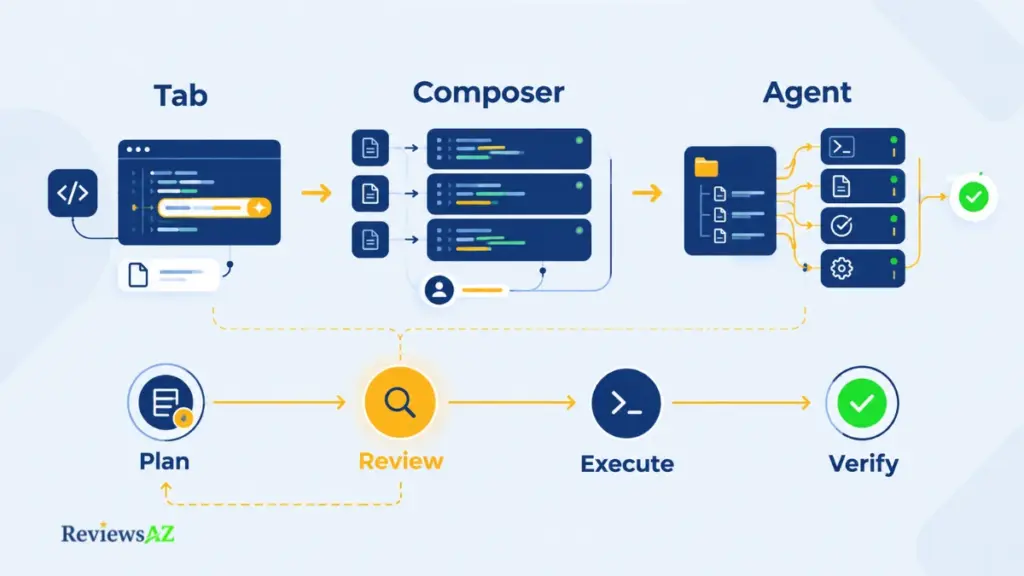
Most Cursor workflows start with a judgment call: how much control should the AI have for this particular task? A one-line bug fix does not need the same level of autonomy as a multi-file refactor, and treating every task as an Agent job can create more review work than it saves. The useful skill is knowing where to stop at assistance and when the task actually benefits from delegation.
- Start with Tab when the change is small and predictable. Tab is a natural fit for inline suggestions, routine edits, and boilerplate that can be checked almost immediately. There is little reason to hand a simple change over to a more autonomous workflow when the intended result is already clear.
- Move to Composer when the change spans several files. Composer is better suited to guided multi-file work where the developer wants Cursor to handle more of the mechanical editing while still staying closely involved in the process. This is often the middle ground between accepting individual suggestions and delegating an entire task.
- Use Agent when the task involves several steps, not just several edits. Agent can plan changes, work across files, and use terminal commands as part of the same task. That makes it more useful for larger refactors, dependency changes, test-related work, or other jobs where the sequence of actions matters as much as the code being changed.
- Use Plan Mode before giving a broader task room to expand. Plan Mode creates a checkpoint between describing an intent and allowing Agent to start changing files. For unfamiliar codebases or higher-impact changes, reviewing that plan can catch scope problems before they turn into a long diff. A plan that looks sensible at the level of one function can still reach into files nobody intended to touch.
- Keep human review as the final control point. Once Agent or Composer has finished, review the diff, the commands it ran, and the resulting test output before treating the task as complete. Cloud Agents can extend this workflow beyond the local machine, which is useful for longer-running work but makes that review step no less important. Rollback through Git history or session-level undo is a safety net, not a substitute for understanding what changed.
The practical advantage of Cursor is therefore not that every task can be handed to Agent. It is that the same editor gives you several levels of AI involvement, so you can match the amount of autonomy to the complexity and risk of the work.
Cursor AI Capabilities: What Is Documented and What Matters in Practice
A feature existing and a feature mattering are two different claims, and nowhere in Cursor’s toolkit is that gap wider than around its AI coding agents. Cursor’s documentation confirms what Agent, Cloud Agents, and MCP can technically do. It does not, on its own, tell you which of that capability actually changes how a team ships software versus which of it looks impressive in a demo and rarely gets used once the trial period ends.
| Capability | Evidence Status |
|---|---|
| Agent terminal execution | Officially supported |
| Reliability at scale (failing tests, broken builds) | User-reported, not independently verified |
| Cloud Agents (asynchronous execution) | Officially supported |
| MCP connections | Officially supported / documented |
| Rules and hooks | Officially supported |
| Productivity or speed gains from these features | Could not be verified |
Agent and terminal execution
Agent’s terminal execution is documented as capable of running shell commands, installing dependencies, and executing test suites as part of a task, with configurable approval thresholds for which commands run automatically versus which require a manual yes. That is the officially supported layer.
What is murkier is reliability at scale: how often Agent chooses the right command, how it handles a failing test loop, or how well it recovers from a broken build are questions Cursor’s documentation does not fully answer, and third-party accounts on this vary enough that no single number belongs in a serious review of the Cursor AI Tool.
Key insight: the capabilities that draw the most attention here, terminal-driven Agent execution and Cloud Agents, are also the ones with the least independently verified reliability data. Documented existence and proven reliability are two different claims, and this review treats them that way throughout.
Cloud Agents, formerly Background Agents
Cloud Agents, which Cursor previously called Background Agents, let a task run on Cursor’s infrastructure instead of a local machine, which is useful for longer jobs that do not need to block an active coding session. Officially, that means kicking off a task and checking back on progress rather than watching a terminal the whole time. Where code and context are stored during that execution, and for how long, is covered in the privacy and security section below.
MCP, hooks, rules, and workflow extensibility
Model Context Protocol is the piece that turns Cursor from an editor into something closer to a connected workspace: it lets Cursor talk to external tools and data sources through a standard interface instead of every integration needing custom, one-off code.
Rules let a developer or a team encode standing instructions, house style, or constraints that Cursor keeps applying without repeating them in every prompt. Hooks trigger actions at defined points in the workflow, similar in spirit to a pre-commit script but aimed at the AI layer rather than plain git. All three are documented, shipping features. Whether a given team gets real value from them depends less on Cursor and more on whether anyone invests the setup time, which is the honest caveat most feature roundups skip.
Cursor and SQL: Where It Helps and Where It Stops
A developer using Cursor for backend work will eventually paste a query into a file or a terminal and expect the same assistance that JavaScript or Python gets. That expectation is reasonable, and mostly correct, but Cursor is not built as a database tool first, which matters more once schemas get complicated or once the query is about to run against production.
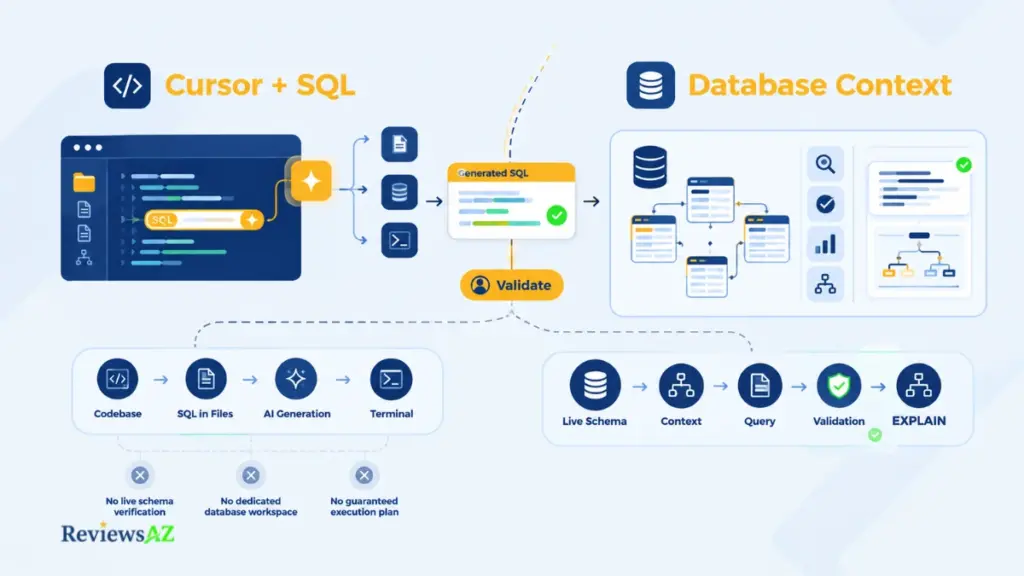
AI coding assistant for SQL in files and terminal workflows
As an AI coding assistant for SQL, Cursor works the way it does for any other language: it reads the SQL file or the query embedded in application code, applies the same codebase context and Tab completion, and can run a query from the terminal if a database CLI is already configured. What it does not do is provide a dedicated database browser, schema visualizer, or query history the way a purpose-built SQL client would. It treats SQL as text inside a coding environment, not as its own workspace.
Generate SQL queries with AI when schema/context is available
Cursor can generate SQL queries with AI convincingly when the schema is visible in the project, whether as migration files, an ORM’s model definitions, or comments describing table structure. Without that context, it still produces syntactically plausible SQL, which is exactly the problem: a query can look right and target the wrong column names or an outdated version of the schema, because Cursor has no live connection back to the database to check.
Production Safety: A generated query that looks syntactically correct is not the same as one that is safe to run against production. Missing WHERE clauses, JOINs that quietly multiply rows, and schema mismatches rarely show up as syntax errors.
Text-to-SQL AI vs. Cursor
Text-to-SQL AI describes a narrower category of product built specifically to turn natural-language questions into queries, usually with a live database connection, schema awareness, and query execution built in as the core feature rather than a side effect of a coding environment. For a data analyst who mainly writes queries and rarely touches application code, dedicated AI SQL tools are typically the better fit. For a developer whose SQL work is embedded inside a larger codebase, Cursor’s coding-first approach keeps everything in one place instead of switching tools.
The same coding-first approach shows its limits once the conversation turns to optimization. Ask Cursor to optimize SQL queries with AI and it will suggest indexing changes, rewritten joins, or simplified subqueries based on general SQL knowledge, not on an actual query plan from the target database, since it is not connected to one. The AI-generated SQL risks worth taking seriously start here: the suggestions are reasonable starting points, not verified optimizations, and the validation step, such as checking an actual execution plan or testing against a staging copy of the data, stays a human responsibility that a specialized, schema-aware tool would otherwise handle for you.
Cursor Security and Privacy: What to Verify Before Using Proprietary Code
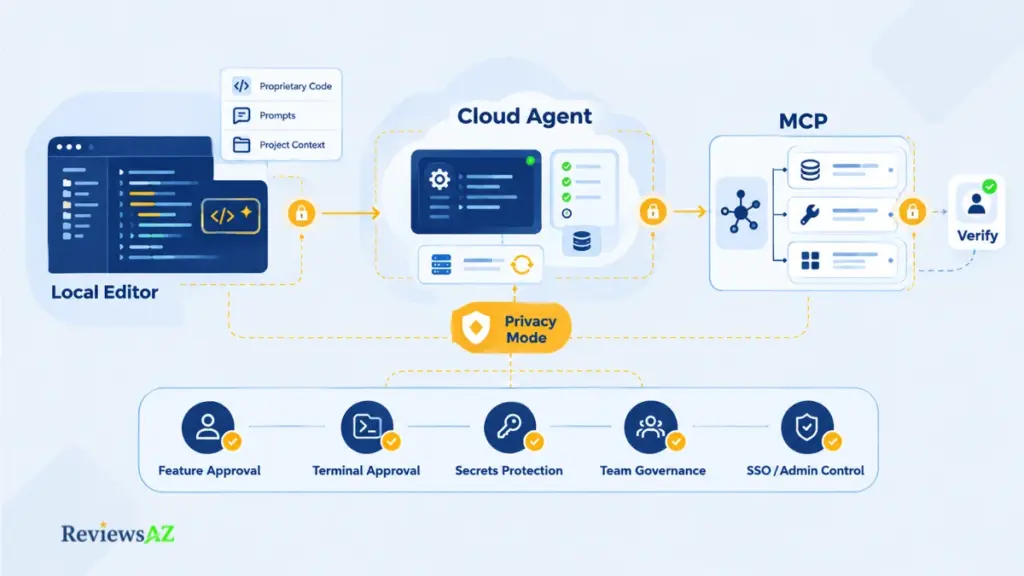
Before pointing Cursor at proprietary code, it helps to separate two guarantees that are easy to collapse into one: whether your code ever trains a model, and whether it ever leaves your machine to be stored somewhere. Cursor’s Privacy Mode answers the first question, and it answers it the same way everywhere in the product, Cloud Agents included. It does not answer the second, and a security review needs to focus on exactly that gap.
Privacy Mode and current data-use boundaries
Cursor Privacy Mode is the setting that determines whether code and prompts get used to train models. With Privacy Mode enabled, Cursor maintains zero data retention (ZDR) agreements with its model providers, meaning code is not stored by those providers or used for training. According to Cursor’s documentation, that guarantee holds consistently across the product, including Cloud Agents, which run under Privacy Mode by default. What it does not cover is Cursor’s own storage of Cloud Agent data while a task runs, which is a separate question from training.
Cloud Agent storage, approvals, secrets, and governance
Cloud Agent storage is where the “no training” guarantee and a “no storage” assumption diverge. Because a Cloud Agent task runs on Cursor’s infrastructure rather than a developer’s own machine, it needs somewhere to keep the code and environment it is working with while the task runs.
Cursor’s documentation states that conversation history for a Cloud Agent run is kept indefinitely by default, though it can be deleted on demand through the Delete Agent API, and that environment snapshots are retained for up to 90 days of inactivity.
Cursor’s older, stricter Privacy Mode, the one that blocked cloud storage entirely, is not supported for Cloud Agents at all, precisely because they need that storage to function. For proprietary code, that makes Cloud Agent use a distinct approval decision rather than an assumption covered by whatever local privacy settings already say.
Secrets management follows a similar logic: terminal approvals that let commands run without a manual check are convenient, but they are also where an exposed API key or credential could leak if a task touches a file it should not. Usage governance, meaning who on a team can enable Cloud Agents, approve unattended terminal commands, or install MCP-connected tools, is a policy decision worth making deliberately rather than by default settings.
Enterprise teams can also cap Cloud Agent retention through their own retention policies, and for teams generally, governance often extends to SSO and admin-level controls that decide who can change these settings in the first place. None of this makes Cursor unsafe for real projects; it makes storage and training two questions worth verifying separately, instead of assuming one answer covers both.
Cursor Pricing: What the Current Tiers Actually Mean
The subscription price on Cursor’s plans page is not the ceiling on what a plan actually costs to use, and that distinction matters more here than which tier number sounds most impressive. A $20/month Pro plan and a $200/month Ultra plan are not just different amounts of the same thing; they represent different assumptions about how much AI-driven work a person or team will actually do in a given month, and the on-demand billing that kicks in beyond a plan’s usage pool is where actual monthly cost can diverge from the sticker price.
To be precise about the number in this review’s title: that is six publicly priced tiers, Hobby through Ultra plus the two Teams tiers, with Enterprise priced separately and custom rather than listed as a seventh fixed price.
Hobby vs Pro vs Pro+ vs Ultra
| Plan | Price |
|---|---|
| Hobby | Free |
| Pro | $20/month |
| Pro+ | $60/month |
| Ultra | $200/month |
Hobby is the free entry point, useful for testing whether Cursor’s workflow fits before committing to a subscription. Pro, at $20 per month, is likely to be the starting point for most individual developers, with Pro+ at $60 per month and Ultra at $200 per month scaling up the included usage pool for people running Agent and Cloud Agents heavily enough to burn through Pro’s allowance on a regular basis. Moving up a tier only makes sense once actual usage data shows the lower tier’s pool running out consistently, not because a higher number sounds like more value on its own.
| Plan | Price |
|---|---|
| Teams Standard | $40/user/month |
| Teams Premium | $120/user/month |
| Enterprise | Custom pricing |
Teams Standard, at $40 per user per month, and Teams Premium, at $120 per user per month, are priced per paid seat, with a Premium seat carrying five times the usage allowance of a Standard seat for three times the price, according to Cursor’s team pricing documentation.
Both seat types bundle in centralized billing and administration, usage analytics, and organization-wide privacy controls, and a team can mix Standard and Premium seats rather than committing everyone to the same tier.
Enterprise moves to custom pricing once a team needs pooled usage across seats, invoicing, SCIM provisioning, or advanced security controls beyond what the self-serve Teams plans already include.
Why plan price is not a fixed request allowance
These prices do not translate into a fixed number of requests, edits, or Agent runs. Cursor splits included usage into two separate pools, one for its own first-party models and Auto, and a separate one for third-party API models like Claude, GPT, and Gemini, rather than counting actions individually.
A short Tab completion and a long Agent task that reads a large codebase and runs several terminal commands draw very differently on those pools, even though both feel like one use from the outside. The honest answer to how much Cursor costs a specific person or team depends on how that person or team actually works, checked against Cursor’s official pricing page rather than a fixed monthly request count that does not exist in current documentation.
Cursor Review: The Key Pros and Cons That Matter
The most common complaint about Cursor, that it is priced awkwardly for heavy AI use, is technically true and also slightly misses the point. The same usage-based system that makes monthly cost less predictable is also what lets the higher tiers exist for people who actually need them, instead of everyone subsidizing the heaviest users through one flat fee.
| Strength | Note |
|---|---|
| Deep codebase context across Tab, Composer, and Agent | Documented and consistent with how the editor is built, not a marketing-only claim |
| Terminal and multi-file task execution via Agent and Cloud Agents | Reduces manual steps for larger changes; reliability at the edges (failing tests, broken builds) is user-reported, not independently verified |
| MCP extensibility, rules, and hooks | Real, documented capability; value depends on the setup time a team is willing to invest |
| Familiar, VS Code-based editor | Low switching cost for developers already using VS Code or compatible extensions |
The strengths above explain why Cursor can feel unusually integrated during active development. The trade-offs become clearer once the same workflow is viewed from the perspective of cost, specialization, and human oversight.
| Limitation | Note |
|---|---|
| Usage-based cost beyond the plan’s included pool | Makes monthly cost harder to predict than a flat subscription, especially for heavy Agent use |
| Not a dedicated database tool | SQL support is coding-assistant-level, not a substitute for schema-aware text-to-SQL products |
| Human review still required for AI-generated changes and terminal commands | Not unique to Cursor, but a limitation the marketing around “agentic” workflows can understate |
| Privacy and data-use settings vary by feature | Privacy Mode covers training everywhere, but not every feature’s cloud-storage footprint |
None of these trade-offs are disqualifying on their own, and they will not carry equal weight for every reader: a terminal-first developer and a GUI-first developer will reasonably rank this list differently. What they add up to is the set of variables that decide whether a specific plan fits how you actually work.
Who Should Use Cursor, and Who Should Not?
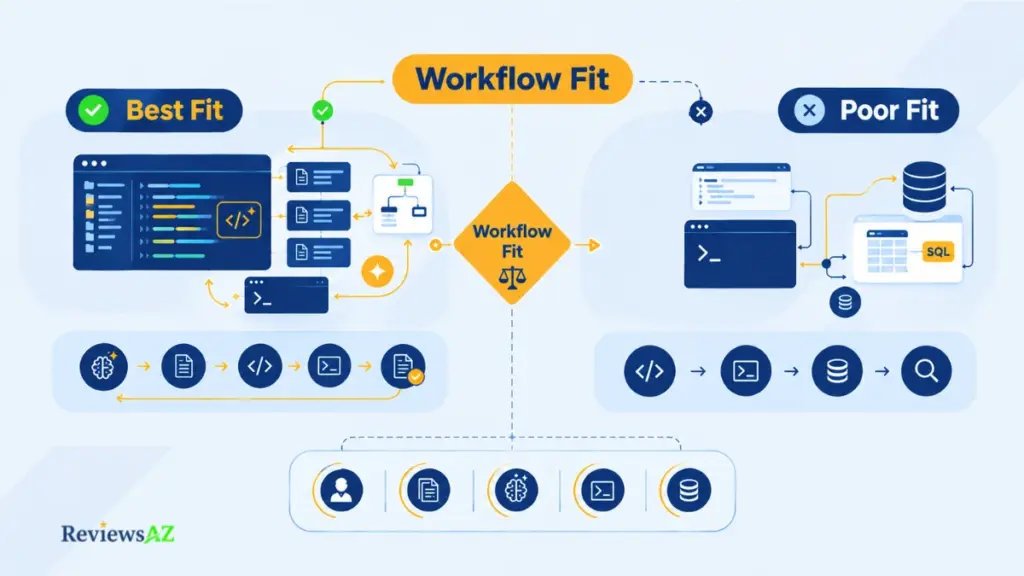
Picture two developers evaluating Cursor this week: one rebuilds a mid-sized SaaS product’s backend inside VS Code every day, and the other mostly runs one-off scripts from a terminal and rarely opens an IDE at all. Cursor was built with the first developer in mind.
Best fit: professional developers, codebase-heavy work, agentic iteration
- Professional developers working in established codebases: Cursor fits well when Tab’s project-wide context and Agent’s multi-file execution can save meaningful time across everyday development.
- Developers handling larger, multi-file changes: Feature work, refactoring, dependency updates, and test-related tasks can benefit more from Cursor’s agentic workflow than small, isolated edits.
- Teams comfortable with human review: Cursor is a better fit when reviewing AI-generated diffs, terminal commands, and test results is treated as a normal part of the development process.
- Developers who want an AI-native editor: Cursor makes more sense for people willing to work inside an editor built around AI capabilities rather than simply adding an assistant to an existing setup.
- Teams that can make practical use of Agent, Cloud Agents, or MCP: The broader feature set becomes more relevant when these capabilities are part of the actual workflow rather than features used occasionally.
Decision point: The less suitable cases below are not unusual edge cases. They simply reflect workflows where Cursor’s broader editor-centric capabilities may not add enough value to justify the added cost or change in working style.
Poor fit: occasional users, absolute beginners, terminal-first users, or specialized SQL/database needs
- Occasional coders: Users who write code only a few times a month may rarely use enough of a paid tier’s usage pool to justify the cost over Hobby or a lighter alternative.
- Absolute beginners: The value of Cursor depends heavily on whether a beginner is already comfortable reviewing multi-file AI changes, rather than simply on how well the tool explains what it generated.
- Terminal-first developers: Developers who do most of their work from the command line may prefer a terminal-native agent instead of adopting an AI-native graphical editor. The workflow differences are discussed further in Claude Code vs Cursor.
- Users focused mainly on SQL and databases: Anyone whose primary need is database querying may be better served by dedicated AI SQL tools built around live database connections, schema awareness, and query execution rather than a general-purpose coding environment.
Cursor Alternatives: Better Fit by Workflow
The moment Cursor stops being the obvious choice is usually a specific one: a developer who mostly writes shell scripts and infrastructure code from a terminal, a data analyst who just wants correct SQL without touching an IDE, or a GitHub Copilot user unsure whether switching editors is worth the disruption. In those cases, Cursor Alternatives make more sense when they match the way you actually work, rather than simply offering another general-purpose coding environment. Each situation points toward a different alternative, not toward one universal winner among the three below.
Cursor vs GitHub Copilot
Cursor vs GitHub Copilot comes down to how much of your workflow you are willing to move. Copilot ships as an extension inside editors developers already use, including VS Code, JetBrains IDEs, and others, which keeps the switching cost close to zero.
Cursor rebuilt the editor itself around AI-native features, which is where its deeper codebase context, Composer, and Agent capabilities come from, but that also means adopting a new primary editor rather than adding a plugin to an existing one.
A developer who wants strong inline suggestions without changing tools generally leans Copilot; a developer who wants multi-file Agent execution as a core workflow, not an add-on, is the person Cursor is actually built for.
Claude Code vs Cursor
Claude Code vs Cursor is less a feature fight than a question of where a developer prefers to work. Claude Code operates primarily from the terminal, which fits naturally into CI pipelines, scripting-heavy work, and workflows that never really needed a graphical editor in the first place. Cursor’s Agent lives inside a visual editor, with diffs, file trees, and inline review as first-class parts of the experience.
Neither approach is more agentic than the other in any meaningful sense; they route the same kind of AI-driven task execution through a different interface. A team already comfortable orchestrating work from the command line often finds Claude Code the more natural fit, while a team that wants that same execution wrapped in a familiar IDE tends to prefer Cursor.
When AI SQL tools are more appropriate
For anything centered on database work rather than general software development, dedicated AI SQL tools are usually the better call. A tool built specifically around a live database connection, schema awareness, and natural-language-to-SQL generation removes the need to configure a CLI connection inside a coding editor just to run one query.
Cursor can help with SQL that lives inside an application’s codebase, which this review covered directly above, but it was never designed to replace a dedicated database client, and treating it as one just adds friction that a purpose-built tool does not have.
Related Posts:
Best AI Coding Assistants for Enterprise Teams
Open Source AI Coding Assistants
Cursor vs Claude Code vs Codex vs GitHub Copilot
Final Verdict: Is Cursor Worth It?
For this Cursor review, the conclusion is straightforward: Cursor is worth paying for if your daily work involves enough codebase-heavy, multi-file development that Agent’s execution and Tab’s project-wide context save real time, and if you are comfortable treating every AI-generated change as something to review, not something to trust by default. Outside those two conditions, a free tier, a lighter extension, or a different tool usually makes more sense than paying for capability you will rarely exercise.
Worth it if…
- You work inside a codebase substantial enough for Agent’s multi-file execution and Tab’s project context to save real time, not just autocomplete a line here and there.
- You are comfortable reviewing AI-generated diffs and terminal commands as a standard part of your process, not an optional extra step.
- Your usage is frequent enough that a paid tier’s included pool gets used consistently, rather than sitting mostly idle.
- You want an integrated editor experience rather than a lightweight extension bolted onto an existing setup.
Not ideal if…
- You write code occasionally and would rarely use enough of a paid tier’s included pool to justify the cost over Hobby or a free alternative.
- Your primary workflow lives in a terminal rather than an editor, where a tool built around command-line execution fits more naturally.
- Your main need is database querying, where a dedicated AI SQL tool with a live database connection does the job with less setup.
- You are not yet comfortable reviewing AI-generated changes carefully, since that review step is where Cursor’s workflow actually holds up or falls apart.
These conditions are not fixed, either. A terminal-first developer’s workflow can shift, and an occasional user can become a daily one, so it is worth checking against current habits rather than aspirational ones.
One thing worth keeping in mind before subscribing to any tier: Cursor’s usage pools and feature set have changed more than once, so treat the plan comparison in this review as a snapshot rather than a permanent reference.
Practical Test: The lowest-risk way to test the fit is starting on Hobby with one real, moderately complex task, not a toy example, and watching how much of the usage pool that single task actually consumes before committing to a higher tier. That one task will tell you more about whether Cursor is worth it than any feature list, including this one.
Frequently Asked Questions
By this point, the main trade-offs should be clear, but the details can still matter when the decision comes down to your own workflow. These questions address the practical points that can change that decision, making this Cursor review more useful for evaluating Cursor’s current pricing and AI capabilities, along with SQL support, privacy, and who the product is actually suited to.
Is Cursor worth it in 2026?
Cursor is worth it if you do codebase-heavy, multi-file development often enough to use Agent and Tab’s project context regularly, and if you are comfortable reviewing AI-generated changes before they ship. For occasional coding, terminal-first workflows, or database-only work, a lighter tool usually fits better than paying for Cursor’s higher tiers.
How much does Cursor cost in 2026?
Individual plans run from a free Hobby tier up to $200 per month for Ultra, with Pro at $20 and Pro+ at $60 per month in between. Team plans start at $40 per user per month for Standard and $120 for Premium, and Enterprise pricing is custom. All tiers meter usage against separate pools for first-party and third-party models rather than a fixed number of requests, so actual monthly cost still depends on how much Agent and Cloud Agent work you run.
What is Cursor best used for?
Cursor is best used for codebase-aware software development where multi-file editing, Agent-driven task execution, and project-wide context genuinely speed up the work, such as feature development and cross-file refactoring inside an existing codebase. It is less suited to one-off scripts, database-only querying, or workflows that do not need an AI-native editor at all.
How does Cursor differ from GitHub Copilot and Claude Code?
Copilot is an extension added to an existing editor, which keeps switching cost low but limits how deeply it integrates with the codebase. Cursor rebuilt the editor itself around AI-native features like Agent and Composer. Claude Code takes a different path again, running primarily from the terminal rather than a graphical editor, which suits command-line-first workflows better than Cursor’s IDE-centric approach.
Can Cursor work with SQL databases?
Cursor can read, write, and suggest SQL as part of a coding project, especially when the schema is visible through migration files or ORM models, and it can run queries from the terminal if a database CLI is configured. It is not a dedicated database tool, though; it has no live schema awareness of its own, so a specialized text-to-SQL product is usually a better fit for database-only work.
Is Cursor safe for proprietary or sensitive code?
It can be. Cursor states that Privacy Mode prevents customer data from being used to train its models, including for Cloud Agents. What that does not cover is cloud storage: Cursor’s documentation says Cloud Agents keep conversation history indefinitely by default and environment snapshots for up to 90 days of inactivity, so treat training and storage as two separate questions to verify before pointing Cursor at proprietary code.
Who should not use Cursor?
Occasional coders who rarely use enough of a paid tier’s usage pool, terminal-first developers who would rather work from the command line, teams needing database-only tooling, and anyone not yet comfortable reviewing AI-generated changes carefully are generally better served by a different, more specialized tool than by paying for Cursor.